• Rex Heuermann: A Detailed Examination of Court and Bail Documents

    New court documents released on Thursday allegedly show suspected Gilgo Beach serial killer Rex Heuermann’s meticulous planning to prepare, commit, and get away with murder. The disturbing and detailed manifesto was found on one of Heuermann’s 58 hard drives that investigators recovered during their initial search of his property in 2023. Prosecutors said that, in the document, Heuermann “plans out” his “kills” by creating a checklist of issues to avoid getting caught, needed supplies, and potential dumping sites.

    Rex Heuermann documents

    Discovery of the Manifesto

    The manifesto, a Microsoft Word document, was recovered using a computer forensic extraction method. It was found in an “unallocated space,” which means someone had deleted it. A forensic analysis concluded that the document was created in 2000 and had been modified between 2001 and 2002. This document allegedly references slayings that prosecutors believe likely happened inside Heuermann’s Massapequa Park home. It notes steps to take “next time,” such as “hit harder” and “consider a hit to the face or neck for takedown.”

    Contents of the Manifesto

    Planning and Execution

    The manifesto outlines Heuermann’s intent to meticulously plan and execute his crimes. It includes a list labeled as “SUPPLIES,” where Heuermann allegedly wrote down cutting tools, acid, hair nets, and tarps. The document also included a list labeled “BODY PREP,” which states tasks such as “remove head and hands, remove trace DNA and remove ID marks [like] tattoos.” These details are consistent with the condition of Valerie Mack and Jessica Taylor’s remains, victims found partially in Manorville and along Ocean Parkway.

    Methodology

    Suffolk County District Attorney Ray Tierney stated, “We allege that the methodology, that the exact method by which these murders were committed in excruciating detail in that document, is in some cases identical to the methodology used to murder the six victims in this case.” The document allegedly detailed steps to “use push pins to hang drop cloths from ceiling” and “use heavy rope for neck-light rope broke under stress of being tightened.” These specifics brought detectives back to Heuermann’s home for a renewed search in May.

    Potential Dumping Sites

    Heuermann allegedly listed Mill Road in the document, an area in Manorville where police first found partial remains of Gilgo Beach victims Valerie Mack and Jessica Taylor. This inclusion further connected Heuermann to the crime scenes, reinforcing the hypothesis that he planned and executed the murders with careful consideration of location and disposal.

    Impact on Investigations

    Forensic Analysis

    The discovery of the document was pivotal in the investigation. “Once we received that document, we went back into the house and, looking at the paneling in the downstairs basement area, we were able to look through an infrared light and establish a cordoned-off area where an adhesive had been placed,” Tierney said. “We also found an area where there were push pins into the drop ceiling.” This forensic analysis corroborated the contents of the manifesto, providing physical evidence to support the claims made in the document.

    Additional Evidence

    The hard drive containing the once-deleted document is one of dozens of electronics investigators seized during their search warrants. Among the electronics recovered—which investigators are still going through—include 58 hard drives, 27 computers, 46 cellphones, 16 cameras, nine Wi-Fi routers, 17 tablets, 42 USB drives, eight laptops, 50 hotel cards, and four GPS devices. This extensive collection of digital evidence is being meticulously analyzed to uncover more information about Heuermann’s activities and potential other crimes.

    Rex Heuermann’s Bail Document

    The bail document for Rex Heuermann provides further insights into the prosecution’s case and the rationale behind denying bail. Given the meticulous planning outlined in the manifesto and the extensive digital evidence collected, the prosecution argued that Heuermann posed a significant flight risk and a continued danger to the community.

    Arguments Against Bail

    Flight Risk

    Prosecutors emphasized the detailed nature of Heuermann’s planning and his capacity to evade capture. The manifesto demonstrated his awareness of the need to avoid detection and his ability to execute complex plans without leaving substantial evidence. This level of sophistication suggested that, if released, Heuermann could potentially disappear or continue his criminal activities undetected.

    Danger to the Community

    The nature of Heuermann’s alleged crimes—brutal, premeditated murders—highlighted the ongoing risk he posed. The bail document referenced the checklist items such as “remove head and hands, remove trace DNA and remove ID marks [like] tattoos,” illustrating his intent to prevent identification and avoid capture. This demonstrated a clear and present danger to the community, justifying the denial of bail.

    Court Proceedings and Legal Arguments

    Initial Court Appearance

    During Heuermann’s initial court appearance, the prosecution laid out the evidence obtained from the manifesto and the digital devices. They detailed the steps Heuermann allegedly took to plan and execute the murders, emphasizing the meticulous nature of his actions. The defense, on the other hand, attempted to challenge the validity of the evidence, questioning the methods used to recover the deleted document and the interpretations of its contents.

    Subsequent Hearings

    In subsequent hearings, the court reviewed additional evidence presented by the prosecution, including forensic analyses of the physical evidence found at Heuermann’s home. The defense continued to argue against the admissibility of the digital evidence, claiming potential tampering or misinterpretation. However, the prosecution’s case remained robust, supported by the detailed planning document and corroborating physical evidence.

    Expert Testimonies

    Expert testimonies played a crucial role in the court proceedings. Forensic experts explained the methods used to recover the deleted manifesto and the significance of its contents. Psychologists and criminologists provided insights into Heuermann’s behavior and mindset, reinforcing the prosecution’s arguments about his danger to society and the need for continued incarceration.

    The Ongoing Investigation

    Analysis of Digital Evidence

    Investigators are still meticulously analyzing the extensive digital evidence recovered from Heuermann’s property. The 58 hard drives, 27 computers, 46 cellphones, 16 cameras, nine Wi-Fi routers, 17 tablets, 42 USB drives, eight laptops, 50 hotel cards, and four GPS devices are being examined for additional incriminating information. This process is time-consuming but essential for uncovering the full extent of Heuermann’s activities and potential other crimes.

    Community Impact

    The revelation of Heuermann’s meticulous planning and the gruesome details of his alleged crimes have had a profound impact on the community. The case has garnered widespread media attention, raising awareness about the Gilgo Beach murders and the ongoing efforts to bring justice to the victims and their families. Community members have expressed relief at Heuermann’s arrest and the hope that the investigation will lead to closure and accountability.

    Conclusion

    The court and bail documents related to Rex Heuermann provide a chilling insight into the mind of a meticulous and calculated individual. The discovery of his detailed manifesto, outlining his planning and execution of murders, underscores the complexity and brutality of his alleged crimes. The extensive digital evidence recovered from his property continues to be analyzed, offering the potential to uncover further incriminating information and bring justice to the victims of the Gilgo Beach murders. As the legal proceedings continue, the community remains vigilant, hopeful that the case will result in accountability and closure for the families affected by these heinous crimes.


  • The Role and Frequency of Defensive Foreign Travel Briefings

    In an increasingly globalized world, international travel has become a common part of professional and personal life. However, travel to foreign countries, especially for government employees, military personnel, and individuals with access to sensitive information, can pose significant security risks. To mitigate these risks, defensive foreign travel briefings are mandated by various organizations and agencies. This essay explores the necessity, frequency, and content of these briefings, with a focus on their importance in ensuring the safety and security of travelers and the sensitive information they may carry.

    Defensive Foreign Travel Briefings

    The Importance of Defensive Foreign Travel Briefings

    Understanding the Risks

    Traveling abroad, especially to countries with different political, social, and cultural landscapes, can expose individuals to a variety of risks. These include espionage, kidnapping, cyber threats, and other forms of surveillance and targeting by foreign intelligence services. Defensive foreign travel briefings aim to educate travelers on these risks and provide strategies to mitigate them.

    Protecting Sensitive Information

    For individuals with access to classified or sensitive information, the stakes are even higher. The potential for information to be inadvertently disclosed or deliberately extracted by foreign entities necessitates stringent protective measures. Defensive travel briefings provide crucial guidance on how to safeguard this information while abroad, emphasizing the importance of vigilance and adherence to security protocols.

    Enhancing Personal Safety

    Apart from protecting information, these briefings also focus on the personal safety of travelers. They offer advice on how to avoid dangerous areas, recognize and respond to surveillance, and handle various emergency situations. This knowledge is vital in ensuring that travelers can navigate foreign environments safely and confidently.

    Frequency of Defensive Foreign Travel Briefings

    Government and Military Requirements

    For government employees and military personnel, the frequency of defensive foreign travel briefings is often determined by departmental policies and the nature of their duties. Typically, these briefings are required:

    1. Before Each Trip: Individuals may need to receive a briefing before each instance of foreign travel. This ensures that they are aware of the specific risks associated with their destination at that particular time.
    2. Annually: In some cases, a general briefing may be required on an annual basis, with additional briefings provided before travel to high-risk destinations.
    3. Upon Major Changes in Risk Environment: If there are significant changes in the geopolitical landscape or specific threats are identified, additional briefings may be mandated to address these new risks.

    Corporate Policies

    For employees of multinational corporations or those in industries with high-security concerns, similar practices are followed. The frequency of briefings may vary based on corporate policies, but common practices include:

    1. Pre-Travel Briefings: Required before each trip to ensure travelers are updated on the latest security protocols and risk assessments.
    2. Periodic Refresher Courses: These may be conducted annually or biannually to keep employees informed about general travel security practices and emerging threats.

    Academic and Non-Governmental Organizations

    Academics and NGO workers who frequently travel to volatile regions may also be required to undergo defensive foreign travel briefings. The frequency of these briefings can depend on the organization’s policies and the nature of the regions being visited, often following a similar structure to government and corporate policies.

    Content of Defensive Foreign Travel Briefings

    Threat Assessment

    A critical component of any defensive foreign travel briefing is the assessment of potential threats. This includes:

    1. Geopolitical Analysis: Understanding the political climate of the destination country, including potential conflicts, civil unrest, and the presence of hostile entities.
    2. Espionage Risks: Identifying the likelihood of surveillance or intelligence gathering efforts by foreign governments.
    3. Terrorism and Crime: Evaluating the risks of terrorism, kidnapping, and other forms of crime that could endanger the traveler.

    Personal Security Measures

    Briefings provide comprehensive guidance on personal security measures, such as:

    1. Situational Awareness: Techniques for maintaining awareness of one’s surroundings to detect and avoid potential threats.
    2. Safe Travel Practices: Recommendations for transportation, accommodation, and safe conduct while in the foreign country.
    3. Emergency Procedures: Instructions on how to respond in the event of an emergency, including contact information for local embassies and consulates.

    Information Security

    Protecting sensitive information is a paramount concern in defensive travel briefings. Key topics include:

    1. Electronic Security: Best practices for securing electronic devices, including the use of encryption, secure communication methods, and precautions against cyber espionage.
    2. Document Security: Guidance on protecting physical documents and minimizing the risk of theft or unauthorized access.
    3. Operational Security: Strategies to avoid inadvertently disclosing sensitive information through conversations, social media, or other means.

    Cultural Sensitivity and Compliance

    Understanding and respecting the local culture and laws is crucial for avoiding unnecessary attention or conflict. Briefings often cover:

    1. Cultural Norms: Insight into the customs, traditions, and social behaviors of the destination country.
    2. Legal Considerations: Awareness of local laws and regulations that may differ significantly from those in the traveler’s home country.
    3. Respectful Interaction: Tips for engaging respectfully with local residents and authorities to foster positive interactions and avoid misunderstandings.

    Case Studies and Real-World Examples

    Government Agencies

    The U.S. Department of Defense (DoD) mandates pre-travel briefings for military personnel and civilian employees traveling to foreign countries. These briefings are tailored to the specific destination and current threat environment, ensuring that travelers are well-prepared for the risks they may face.

    Corporate Sector

    Multinational corporations like ExxonMobil and Deloitte implement comprehensive travel security programs. Employees receive detailed briefings before traveling, particularly to high-risk regions, and periodic refresher courses to stay updated on general travel security practices and emerging threats.

    Academic Institutions

    Universities with extensive study abroad programs, such as Harvard and Oxford, require students and faculty to attend defensive foreign travel briefings. These briefings cover a broad range of topics, from personal safety to cultural sensitivity, ensuring that participants are well-prepared for their time abroad.

    The Role of Technology in Defensive Travel Briefings

    Online Training Modules

    Many organizations now offer online training modules for defensive foreign travel briefings. These modules provide flexibility, allowing travelers to complete the training at their convenience. Interactive scenarios and assessments help reinforce key concepts and ensure that participants understand and retain the information.

    Mobile Applications

    Mobile applications designed for travel security provide real-time updates and resources for travelers. These apps can include features such as country-specific threat assessments, emergency contact information, and secure communication tools, enhancing the effectiveness of defensive travel briefings.

    Virtual Reality (VR) Simulations

    Some organizations are leveraging VR technology to create immersive training experiences. These simulations can replicate real-world scenarios, allowing travelers to practice responding to various threats in a controlled environment. This hands-on approach can significantly enhance preparedness and confidence.

    Challenges and Considerations

    Keeping Information Current

    One of the primary challenges in defensive foreign travel briefings is ensuring that the information provided is current and relevant. Geopolitical landscapes can change rapidly, and briefings must be updated regularly to reflect the latest intelligence and risk assessments.

    Balancing Detail with Usability

    While comprehensive briefings are essential, it is also important to balance the level of detail with usability. Overloading travelers with excessive information can be counterproductive. Effective briefings should focus on the most critical and actionable insights, presented in a clear and concise manner.

    Tailoring to Individual Needs

    Different travelers have different risk profiles based on their roles, destinations, and access to sensitive information. Briefings should be tailored to address the specific needs and vulnerabilities of each traveler, ensuring that they receive the most relevant guidance.

    Conclusion

    Defensive foreign travel briefings are a vital component of ensuring the safety and security of individuals traveling abroad, particularly those with access to sensitive information. The frequency of these briefings varies depending on organizational policies, the nature of the travel, and the current threat environment. Regardless of the frequency, the content of these briefings must be comprehensive, covering threat assessments, personal security measures, information security, and cultural sensitivity. As technology advances, new methods such as online training modules, mobile applications, and VR simulations are enhancing the effectiveness of these briefings. Despite the challenges, defensive foreign travel briefings remain an essential tool in mitigating risks and safeguarding travelers in an increasingly interconnected world.

  • 45 Essential Documents Every Crypto Enthusiast Should Know About

    In the rapidly evolving world of cryptocurrency and blockchain technology, having a comprehensive understanding of the various types of documentation is essential for developers, investors, and enthusiasts alike. These documents not only provide detailed insights into the technical and strategic aspects of projects but also ensure transparency, security, and regulatory compliance. From foundational white papers and technical specifications to legal disclaimers and community guidelines, each document plays a crucial role in the lifecycle of a crypto project. Below is a comprehensive list of 45 essential documents that every participant in the crypto space should be familiar with, providing a well-rounded view of what it takes to successfully navigate and contribute to this innovative field.

    Crypto documents

    1. White Paper

    Meaning: A white paper is a detailed document released by the developers of a cryptocurrency project to inform potential investors and the public about the project’s concept, technology, and business model. It typically includes information about the project’s purpose, architecture, tokenomics, use cases, and the team behind it. The white paper aims to provide enough information to allow potential investors to make an informed decision.

    2. Yellow Paper

    Meaning: A yellow paper is a more technical version of a white paper. It dives deeper into the mathematical and technical details of the blockchain technology and protocols used in a cryptocurrency project. The yellow paper is aimed at developers and technically inclined individuals who need a thorough understanding of the technical aspects of the project.

    3. Blue Paper

    Meaning: A blue paper provides insights into the strategic and economic aspects of a crypto project. It often includes market analysis, adoption strategies, regulatory considerations, and long-term vision. Blue papers are less technical and more focused on the business and strategic elements of the project.

    4. Green Paper

    Meaning: A green paper is a preliminary report or proposal meant to stimulate discussion and gather feedback before the finalization of a project’s plans. In the context of blockchain and cryptocurrency, a green paper might outline initial ideas and concepts and invite input from the community and stakeholders.

    5. Light Paper

    Meaning: A light paper is a condensed version of a white paper. It provides a high-level overview of the project, focusing on the key points and main concepts without going into exhaustive detail. Light papers are designed for a quick read to attract potential investors who want a summary rather than an in-depth document.

    6. Technical Paper

    Meaning: A technical paper outlines the specific technical details and specifications of a blockchain project. It often includes information about the consensus algorithm, cryptographic methods, network architecture, and other technical components. These documents are essential for developers and technical analysts evaluating the project.

    7. Roadmap

    Meaning: A roadmap is a timeline document that outlines the planned development stages and milestones of a cryptocurrency project. It provides a schedule of what the project aims to achieve and when, including technical developments, platform releases, and other significant events. Roadmaps help investors and community members understand the project’s progress and future plans.

    8. Tokenomics Document

    Meaning: A tokenomics document details the economic aspects of a cryptocurrency project, including the distribution, supply, and mechanics of the token or coin. It explains how tokens will be created, distributed, and used within the ecosystem, as well as the incentives for holding and using the token. Tokenomics is crucial for understanding the financial viability and sustainability of the project.

    9. GitHub Repository

    Meaning: While not a document per se, a GitHub repository is a key resource for many blockchain projects. It contains the source code, development updates, issue tracking, and other collaborative tools. Reviewing a project’s GitHub repository allows developers and technically proficient investors to assess the project’s code quality, development activity, and transparency.

    10. Audit Report

    Meaning: An audit report is a document produced by an independent third-party security firm that has reviewed and tested a project’s code for vulnerabilities and security issues. Audit reports are essential for establishing trust and confidence in the security and reliability of a cryptocurrency or blockchain project.

    11. Community Guidelines

    Meaning: Community guidelines outline the rules and expectations for participants in the project’s community, including forums, social media channels, and other platforms. These documents ensure a constructive and respectful environment for discussions and collaborations.

    12. Legal Disclaimer

    Meaning: A legal disclaimer is a document that outlines the legal terms, conditions, and potential risks associated with a cryptocurrency project. It typically includes information about regulatory compliance, investment risks, and legal liabilities, protecting the project from legal disputes and informing investors of the potential risks involved.

    13. ICO/STO/IEO Documentation

    Meaning: These documents pertain to different types of fundraising methods:

    • Initial Coin Offering (ICO): Details the terms and conditions of the token sale, including the price, sale period, and usage of funds.
    • Security Token Offering (STO): Similar to an ICO, but for tokens that are considered securities. It includes compliance information with securities regulations.
    • Initial Exchange Offering (IEO): Conducted on a cryptocurrency exchange, this document outlines the partnership between the project and the exchange, along with sale details.

    14. Business Plan

    Meaning: A business plan outlines the operational and financial goals of a blockchain project, including market analysis, competitive landscape, revenue models, marketing strategies, and financial projections. This document is essential for strategic planning and attracting traditional investors.

    15. Decentralized Application (dApp) Documentation

    Meaning: For projects developing decentralized applications, this document provides technical details, user guides, APIs, and smart contract information necessary for developers and users to interact with the dApp.

    16. Governance Paper

    Meaning: A governance paper outlines the mechanisms for decision-making within a decentralized organization. It covers how proposals are made, how voting occurs, the role of token holders, and how consensus is achieved within the community.

    17. Regulatory Compliance Documentation

    Meaning: These documents detail how a cryptocurrency project complies with relevant laws and regulations. It includes information about KYC (Know Your Customer), AML (Anti-Money Laundering) procedures, data protection policies, and other legal requirements.

    18. Environmental Impact Report

    Meaning: An environmental impact report assesses the ecological footprint of a blockchain project, particularly in terms of energy consumption and sustainability. This is increasingly important for projects looking to address concerns about the environmental impact of cryptocurrency mining and blockchain operations.

    19. Privacy Policy

    Meaning: A privacy policy outlines how a project collects, uses, stores, and protects user data. It is essential for ensuring transparency and compliance with data protection regulations such as GDPR.

    20. Economic Model

    Meaning: Similar to the tokenomics document, but broader in scope, an economic model explains the overall economic design of the project, including incentives, rewards, staking mechanisms, and the economic behavior expected within the ecosystem.

    21. User Guide/Manual

    Meaning: A user guide or manual provides detailed instructions on how to use a cryptocurrency platform, wallet, or application. It is designed to help users navigate the system, understand features, and perform transactions safely.

    22. Risk Assessment Report

    Meaning: A risk assessment report identifies potential risks associated with the cryptocurrency project, including technological, financial, operational, and regulatory risks. It provides strategies for mitigating these risks to ensure the project’s long-term viability.

    23. Patent Documentation

    Meaning: For projects with unique technologies, patent documentation provides details about the patents filed or granted, protecting intellectual property rights. This can include blockchain protocols, cryptographic methods, or specific applications.

    24. FAQs (Frequently Asked Questions)

    Meaning: An FAQ document addresses common questions and concerns about the project, providing clear and concise answers to help users and investors understand various aspects of the project more easily.

    25. Investor Deck

    Meaning: An investor deck is a presentation used to pitch the project to potential investors. It highlights key aspects such as the problem being solved, the solution offered, market opportunity, business model, team, and financial projections.

    26. Press Release

    Meaning: A press release is an official statement distributed to the media to announce significant developments, partnerships, launches, or updates related to the project. It helps in maintaining public relations and keeping the community informed.

    27. Development Roadmap

    Meaning: A more detailed version of a general roadmap, the development roadmap specifically outlines the planned technical development milestones. It includes timelines for software releases, feature implementations, and protocol upgrades.

    28. White Hat Report

    Meaning: A white hat report details findings from security audits conducted by ethical hackers (white hats). It includes discovered vulnerabilities, potential impacts, and suggested fixes. This report is crucial for ensuring the project’s security integrity.

    29. Community Update

    Meaning: Regular community updates are reports or newsletters released to keep the community informed about the project’s progress, recent achievements, upcoming events, and other important news. These updates help maintain transparency and engagement with the community.

    30. Bug Bounty Program

    Meaning: A document outlining the terms and conditions of a bug bounty program, where developers and ethical hackers are incentivized to find and report bugs in the project’s codebase. It includes details on rewards, submission processes, and eligibility criteria.

    31. Use Case Documentation

    Meaning: Detailed documents that describe specific applications and scenarios where the blockchain or cryptocurrency can be utilized effectively. It illustrates practical examples of the technology’s utility and potential impact.

    32. Educational Resources

    Meaning: These include guides, tutorials, webinars, and other materials aimed at educating users, developers, and investors about the project, blockchain technology, and the broader cryptocurrency ecosystem.

    33. Code of Conduct

    Meaning: A code of conduct sets out the expected behaviors and ethical guidelines for participants in the project’s community and contributors to its development. It ensures a respectful and productive environment.

    34. Token Listing Agreement

    Meaning: This document is an agreement between the cryptocurrency project and a cryptocurrency exchange, detailing the terms and conditions for listing the project’s token on the exchange.

    35. Market Analysis Report

    Meaning: A comprehensive analysis of the market environment in which the project operates. It includes competitor analysis, market trends, potential opportunities, and threats. This document helps in strategic planning and positioning of the project.

    36. Security Policy

    Meaning: A security policy document outlines the measures and protocols in place to protect the project’s infrastructure, data, and users from security threats. It includes information on incident response, data encryption, access controls, and other security practices.

    37. Partnership Agreements

    Meaning: These documents outline the terms and conditions of partnerships between the cryptocurrency project and other entities, such as businesses, organizations, or other blockchain projects. They detail the scope of collaboration, responsibilities, and benefits for each party.

    38. Developer Documentation

    Meaning: Detailed technical documentation aimed at developers who want to build on top of or integrate with the project. It includes APIs, SDKs, smart contract templates, and other necessary resources for developers.

    39. Validator/Node Operator Guide

    Meaning: For blockchain networks that rely on validators or node operators, this guide provides detailed instructions on how to set up, run, and maintain a node or validator. It includes hardware requirements, software setup, and operational guidelines.

    40. Compliance Certificate

    Meaning: A certificate issued by a regulatory body or an independent auditor confirming that the project complies with specific regulatory requirements or industry standards. It’s important for building trust and ensuring legal compliance.

    41. Ecosystem Report

    Meaning: A report that outlines the broader ecosystem in which the project operates, including partnerships, integrations, community projects, and other initiatives that support and enhance the main project.

    42. Social Impact Report

    Meaning: A document that evaluates the social impact of the blockchain project, particularly if it aims to address social issues such as financial inclusion, environmental sustainability, or humanitarian efforts.

    43. Innovation White Paper

    Meaning: A document that explores innovative aspects of the project, such as novel technological solutions, new applications of blockchain technology, or groundbreaking features that differentiate the project from others.

    44. Investor Relations Report

    Meaning: Regular reports provided to investors, detailing financial performance, project progress, market conditions, and future plans. These reports help maintain transparency and trust with investors.

    45. Decentralization Report

    Meaning: A report that evaluates the degree of decentralization in the project’s network. It includes metrics and analysis on node distribution, governance participation, and other factors that contribute to decentralization.

    Conclusion

    In conclusion, the diverse array of documents associated with cryptocurrency and blockchain projects highlights the complexity and multifaceted nature of this innovative field. Whether you are a developer seeking technical specifications, an investor evaluating the viability of a project, or a community member looking to understand governance mechanisms, these documents provide critical information and insights. By familiarizing yourself with these 45 essential documents, you can gain a deeper understanding of the intricate workings of crypto projects, make informed decisions, and contribute meaningfully to the growth and evolution of the blockchain ecosystem. As the industry continues to mature, staying informed through these documents will be invaluable for navigating the dynamic landscape of cryptocurrency.

  • How to Scan a Document: A Comprehensive Guide

    How to Scan in a Document

    How to Scan a Document: A Comprehensive Guide

    Introduction

    In the modern digital world, the ability to scan documents efficiently and accurately is crucial for individuals and organizations alike. Whether you need to digitize paperwork, preserve important records, or share information electronically, a scanner can be an invaluable tool. This comprehensive guide will lead you through the steps of scanning a document using various methods, ensuring high-quality results.

    Selecting the Right Scanner

    The first step in the scanning process is choosing the appropriate scanner for your needs. Consider the following factors:

    • Document Type: Flatbed scanners are suitable for general-purpose scanning of single sheets, while document feeders can handle larger volumes of paper. For specialized needs, consider sheetfed scanners, portable scanners, or multi-function printers with scanning capabilities.
    • Resolution: Measured in dots per inch (dpi), resolution determines the sharpness and clarity of the scanned image. For standard documents, 300 dpi is sufficient. However, higher resolutions (600 dpi or more) may be necessary for detailed graphics or archival purposes.
    • Scanning Speed: If you frequently scan large volumes of documents, consider a scanner with a fast scanning speed. Look for models that can scan multiple pages per minute (ppm).
    • Connectivity: Ensure that the scanner is compatible with your computer. Common connectivity options include USB, Wi-Fi, and Ethernet.
    • Software: Some scanners come with proprietary software for managing scans and OCR (optical character recognition), which can be useful for converting scanned text into editable electronic documents.

    Preparing Your Document for Scanning

    Once you have selected a suitable scanner, it’s important to prepare your document properly to ensure optimal results:

    • Remove Staples and Paper Clips: Staples and paper clips can damage the scanner and cause paper jams. Make sure to remove them before scanning.
    • Flatten the Document: Ensure that the document is flat and free of folds or creases. This will help prevent blurry or distorted scans.
    • Clean the Scanner: Dust and debris can affect the quality of the scan. Use a soft cloth to clean the scanner’s glass or platen before scanning.
    • Adjust Scanner Settings: Set the appropriate resolution, color mode (black and white, grayscale, or color), and scan size. Refer to your scanner’s user manual for specific instructions.

    Scanning the Document

    With your document prepared and the scanner settings adjusted, you can proceed with the scanning process:

    1. Place the Document: Place the document face down on the scanner’s glass or in the document feeder. Make sure it is aligned properly and within the scanning area.
    2. Start the Scan: Initiate the scan from your computer or using the scanner’s control panel. Depending on your scanner model, you may need to select the appropriate scanning profile or destination folder.
    3. Preview the Scan: Once the scan is complete, preview the image on your computer to ensure it is clear and legible. Make any necessary adjustments to the scan settings and rescan if needed.

    Saving and Managing Scans

    After you are satisfied with the scan quality, you can save and manage the scanned documents:

    1. Choose a File Format: Select an appropriate file format for the scanned document. Common formats include PDF, JPEG, PNG, and TIFF. Consider the intended use of the document when choosing the file format.
    2. Save the Scan: Specify the destination folder where you want to save the scanned document.
    3. Organize and Name Files: Use a consistent naming convention and organize your scanned documents into folders to make them easy to find and retrieve.
    4. Use OCR Software: If you need to extract text from a scanned document, use OCR software to convert the image into editable text. This can be useful for creating searchable PDFs or editing the document’s content.

    Troubleshooting Common Scanning Issues

    If you encounter problems while scanning, here are some common issues and their solutions:

    • Blurry or Distorted Scans: Ensure that the document is flat and properly aligned on the scanner’s glass. Clean the scanner’s glass or platen to remove dust and debris. Adjust the scanning resolution to a higher setting.
    • Lines or Streaks on the Scan: Clean the scanner’s glass or platen to remove dirt or debris. Check that the document is not wrinkled or folded.
    • Scanned Text Is Not Clear or Editable: Use OCR software to convert the scanned image into editable text. Ensure that the OCR software is compatible with your scanner and the document’s language.
    • Scanner Not Detected by Computer: Check the USB cable or network connection between the scanner and the computer. Ensure that the scanner drivers are installed correctly. Restart both the scanner and the computer.

    Conclusion

    Scanning documents can be a simple and effective way to digitize paperwork, preserve records, and share information electronically. By selecting the right scanner, preparing your documents properly, and following the steps outlined in this guide, you can achieve high-quality scans that meet your needs. Remember to save and manage your scans efficiently to ensure easy access and retrieval.

  • How Do I Save a Word Document as a PDF?

    How Do I Save a Word Document as a PDF?

    How to Save a Word Document as a PDF

    Benefits of Saving a Word Document as a PDF

    Saving a Word document as a PDF offers several advantages:

    1. Portability: PDF files are compatible across multiple platforms and devices, ensuring easy sharing and viewing.

    2. Universal Accessibility: PDFs can be accessed by anyone with a PDF reader, making them ideal for sharing with individuals who may not have Microsoft Word or similar software.

    3. Security: PDFs support password protection and encryption, offering an extra layer of security for sensitive documents.

    4. File Size Optimization: PDFs are often smaller in size compared to Word documents, making them more suitable for emailing or uploading online.

    5. Print Fidelity: PDFs preserve the original formatting and layout of a Word document, ensuring accurate printing.

    Prerequisites for Saving a Word Document as a PDF

    1. Microsoft Word Software: The ability to save a Word document as a PDF is typically available in Microsoft Word 2007 or later versions.

    2. PDF Reader or Converter: Depending on your method of conversion, you may need a PDF reader like Adobe Acrobat Reader or a dedicated PDF converter software.

    Methods to Save a Word Document as a PDF

    There are two primary methods to convert a Word document into a PDF:

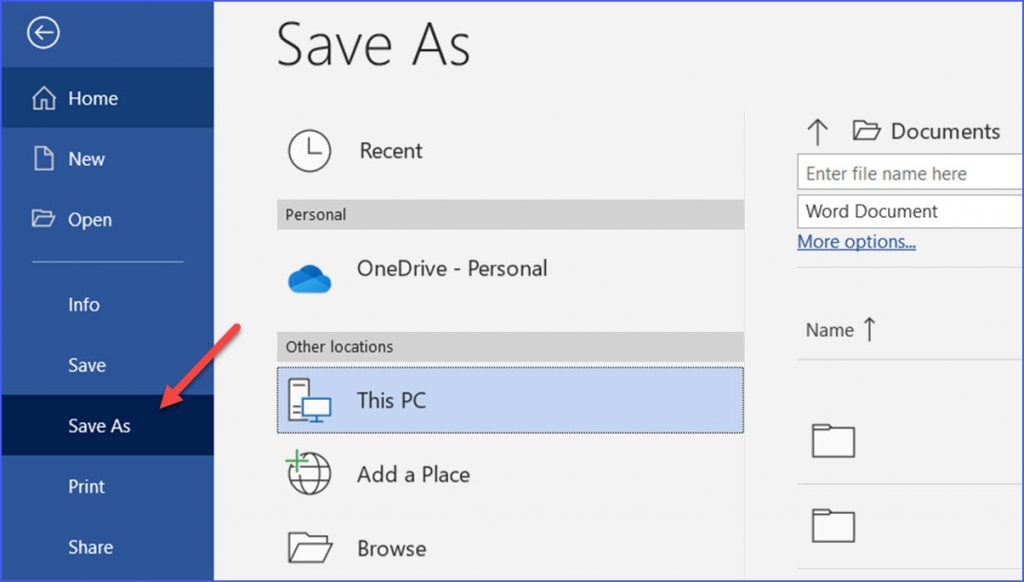
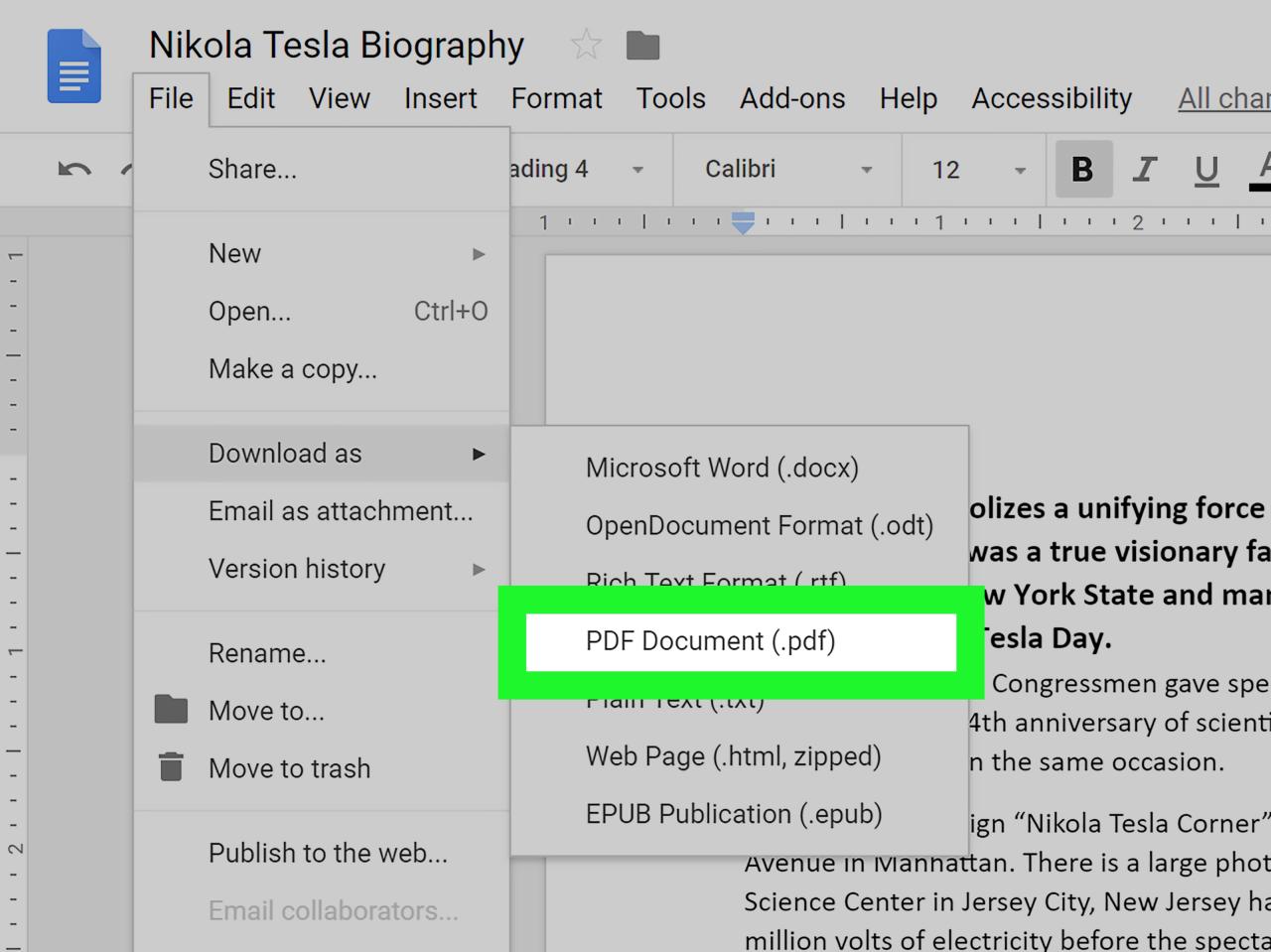
    1. Microsoft Word’s Built-in Save as PDF Feature (Recommended):

      • Open the Word document you want to convert.

      • Click the "File" tab in the top-left corner of the Word window.

      • Select "Save As" or "Export" from the left-hand menu.

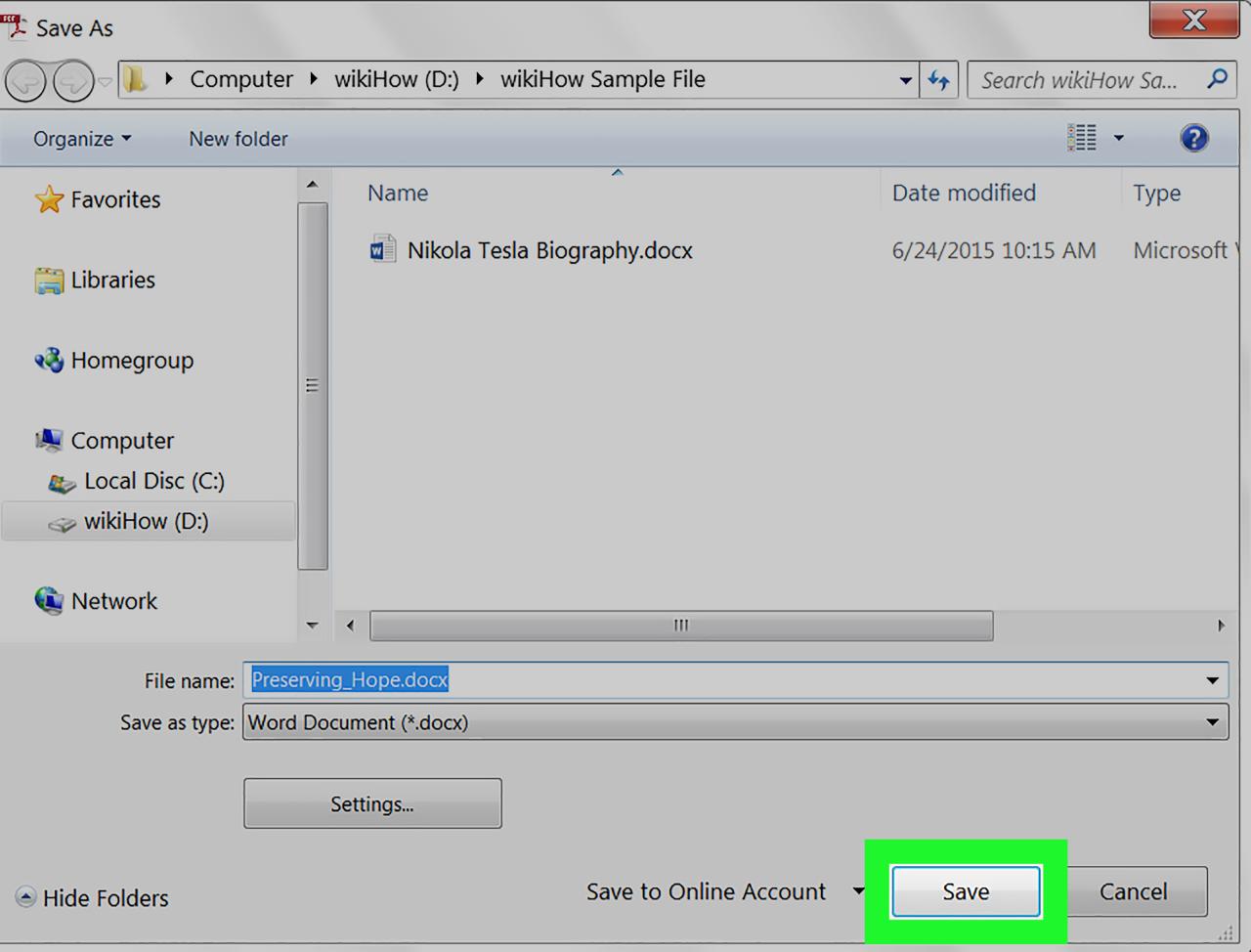
      • In the "Save As" dialog box, choose a destination folder for the PDF file.

      • In the "File name" field, enter the desired name for the PDF file.

      • Select "PDF" as the "Save as type" option.

      • Click the "Save" or "Export" button.

    2. Using a PDF Converter Software:

      • Install a reliable PDF converter software, such as Adobe Acrobat Pro, PDFelement, or Foxit PDF Creator.

      • Open the PDF converter software.

      • Click "Create PDF" or "Convert to PDF" from the software’s main menu.

      • Select the Word document you wish to convert in the file selection dialog box.

      • Specify the desired output location for the PDF file.

      • Click "Convert" or "Save" to start the conversion process.

    Troubleshooting Common Issues

    1. Missing PDF Option in Microsoft Word:

      • Ensure you are using Microsoft Word 2007 or later.

      • Verify that the "Save As PDF" add-in is enabled in Word.

      • If the add-in is disabled, follow these steps:

        • Click the "File" tab in Word.
        • Select "Options" from the left-hand menu.
        • Click "Add-Ins" in the left pane.
        • In the "Manage" drop-down list, select "COM Add-Ins."
        • Click "Go."
        • Check the box next to "Save as PDF" or "Microsoft Save as PDF."
        • Click "OK."
    2. Conversion Errors:

      • Ensure you have sufficient storage space on your computer.

      • Close any other programs that may be interfering with the conversion process.

      • Try converting the Word document to PDF using an alternative method (e.g., using a different PDF converter software).

    Additional Tips for Saving Word as PDF

    1. Maintain Quality: Use high-quality settings when saving the PDF to preserve the original document’s appearance.

    2. Reduce File Size: Compress images and optimize the PDF file to reduce its size without compromising quality.

    3. Add Metadata: Include relevant metadata, such as the author, title, and subject, to make the PDF file easily discoverable.

    4. Protect Sensitive Documents: If necessary, password-protect or encrypt the PDF file to safeguard sensitive information.

    5. Optimize for Accessibility: Ensure the PDF is accessible to individuals with disabilities by adding appropriate tags and alternative text for images.

    6. Test the Conversion: Always open the generated PDF file to verify its accuracy and formatting before distributing it to others.

    By following these steps and tips, you can effortlessly save your Word documents as PDFs, ensuring their accessibility, portability, and security across various platforms.

  • How Can I Turn a PDF into a Word Document?

    How Can I Turn a PDF into a Word Document?

    How Can I Turn a PDF into a Word Document?

    Portable Document Format (PDF) files are a ubiquitous file format that is used for sharing documents across different platforms and devices. However, PDF files are not as easily editable as Word documents, which can be a problem if you need to make changes to the text or layout of a PDF document.

    Fortunately, there are a number of ways to convert a PDF into a Word document, both online and offline. In this article, we will discuss the different methods for converting PDF to Word and provide step-by-step instructions on how to use each method.

    Online PDF to Word Converters

    There are a number of online PDF to Word converters available that allow you to convert PDF files to Word documents without having to install any software. Some of the most popular online PDF to Word converters include:

    • Adobe Acrobat Online
    • Smallpdf
    • Zamzar
    • Online-Convert

    To use an online PDF to Word converter, simply follow these steps:

    1. Visit the website of the online PDF to Word converter that you want to use.
    2. Click the "Choose File" button and select the PDF file that you want to convert.
    3. Click the "Convert" button.
    4. Wait for the conversion to complete.
    5. Download the converted Word document.

    Offline PDF to Word Converters

    If you prefer not to use an online PDF to Word converter, you can also convert PDF files to Word documents using a number of offline PDF to Word converters. Some of the most popular offline PDF to Word converters include:

    • Adobe Acrobat Pro
    • Nitro Pro
    • PDFelement
    • Aspose.PDF for .NET

    To use an offline PDF to Word converter, simply follow these steps:

    1. Download and install the PDF to Word converter on your computer.
    2. Open the PDF file that you want to convert in the PDF to Word converter.
    3. Click the "Convert" button.
    4. Select the output format as Microsoft Word document.
    5. Click the "Save" button to save the converted Word document.

    Tips for Converting PDF to Word

    Here are a few tips for converting PDF to Word:

    • Choose an online or offline PDF to Word converter that supports the features that you need. For example, if you need to convert a PDF file that contains images, make sure that the converter supports image conversion.
    • Make sure that the PDF file is of high quality. A low-quality PDF file will produce a low-quality Word document.
    • Proofread the converted Word document carefully. There may be some errors in the conversion, especially if the PDF file contains complex formatting.

    Conclusion

    Converting a PDF file to a Word document is a relatively easy task. There are a number of online and offline PDF to Word converters available that can help you to convert PDF files to Word documents quickly and easily. By following the tips in this article, you can ensure that you get the best possible results from your PDF to Word conversion.

    Additional Information

    In addition to the methods discussed in this article, there are a few other ways to convert PDF to Word:

    • You can use a cloud-based service, such as Google Docs, to convert a PDF file to a Word document.
    • You can use a mobile app, such as Adobe Acrobat Reader, to convert a PDF file to a Word document.
    • You can use a command-line tool, such as pdftoword, to convert a PDF file to a Word document.

    The best method for converting PDF to Word will depend on your specific needs and preferences.

  • How Can I Digitally Sign a PDF Document?

    Photo: freepik on freepik.com

    Definition of Digital Signature

    A digital signature is an electronic signature that verifies the authenticity of a digital message or document. It is similar to a handwritten signature, but it is created using a cryptographic algorithm. Digital signatures are used to ensure that the sender of a message is who they say they are and that the message has not been tampered with.

    Why Digitally Sign a PDF Document?

    There are many reasons why you might want to digitally sign a PDF document. Some of the most common reasons include:

    • To verify the authenticity of a document. A digital signature can help you to verify that the document you are receiving is genuine and has not been tampered with. This is especially important for sensitive documents, such as contracts and financial statements.
    • To prevent unauthorized access to a document. A digital signature can help to prevent unauthorized access to a document by encrypting it. This means that only the people who have the digital signature can open the document.
    • To comply with legal requirements. In some cases, digital signatures are required by law. For example, the United States Electronic Signatures in Global and National Commerce Act (ESIGN) allows for the use of digital signatures to create legally binding contracts.

    How to Digitally Sign a PDF Document

    There are a few different ways to digitally sign a PDF document. The most common method is to use a digital signature certificate. A digital signature certificate is a file that contains your public key and your digital signature. When you sign a document, your digital signature certificate is used to create a digital signature that is attached to the document.

    To digitally sign a PDF document using a digital signature certificate, you will need to:

    1. Obtain a digital signature certificate. You can obtain a digital signature certificate from a variety of sources, including certificate authorities and software vendors.
    2. Install the digital signature certificate on your computer. Once you have obtained a digital signature certificate, you will need to install it on your computer. The installation process will vary depending on the type of digital signature certificate you have.
    3. Open the PDF document that you want to sign. Once you have installed your digital signature certificate, you can open the PDF document that you want to sign.
    4. Click on the “Sign” button. The “Sign” button is usually located in the toolbar at the top of the PDF document.
    5. Select your digital signature certificate. When you click on the “Sign” button, a dialog box will appear that allows you to select your digital signature certificate.
    6. Click on the “Sign” button. Once you have selected your digital signature certificate, click on the “Sign” button to sign the document.

    Conclusion

    Digital signatures are a valuable tool for protecting the authenticity and integrity of PDF documents. They can be used to verify the sender of a document, prevent unauthorized access to a document, and comply with legal requirements. If you need to digitally sign a PDF document, there are a few different methods that you can use. The most common method is to use a digital signature certificate.

  • Document Translation Services in the US?

    Document Translation Services in the US?

    Document Translation Services in the United States: An In-depth Analysis

    Introduction

    In today’s globalized world, businesses and individuals are increasingly required to communicate across language barriers. Document translation services play a crucial role in facilitating this communication by enabling the translation of documents from one language to another. The US, being a hub for international trade and commerce, has a significant demand for document translation services. This article delves into the current landscape of document translation services in the US, examining industry trends, key players, pricing structures, and emerging technologies.

    Market Overview

    The US document translation services market is projected to reach a value of $12.4 billion by 2026, expanding at a compound annual growth rate (CAGR) of 6.2% from 2021 to 2026. This growth is attributed to factors such as increasing globalization, rising cross-border trade, and the growing adoption of digital transformation across industries.

    Key Trends Shaping the Industry

    1. Globalization and International Trade: The rise of globalization has led to increased demand for document translation services to facilitate communication between businesses and customers across borders.
    2. Digital Transformation: Digital transformation and the adoption of cloud-based technologies have revolutionized the way document translation services are delivered, enabling faster and more efficient translation processes.
    3. Technology Advancements: Advancements in machine translation (MT) technology, such as neural machine translation (NMT), have improved the accuracy and quality of machine-translated content.
    4. Language Diversity: The US is home to a diverse population speaking various languages, leading to a growing demand for translation services that cater to specific language pairs.
    5. Regulatory Compliance: Stringent regulatory requirements in various industries, such as healthcare and finance, have increased the need for accurate and reliable document translation services.

    Industry Players

    The US document translation services market is characterized by the presence of both established multinational companies and specialized translation agencies. Some of the leading players in the industry include:

    1. Lionbridge: A global provider of language translation and localization services, offering a wide range of solutions for businesses and industries.
    2. TransPerfect: A leading provider of language translation and interpretation services, serving clients in diverse industries across the world.
    3. SDL (RWS): A global provider of language technology and translation services, offering solutions for enterprise clients in various sectors.
    4. Moravia: A specialized translation company focused on technical and scientific translations, serving clients in industries such as engineering, manufacturing, and healthcare.

    Pricing Structures

    Pricing models for document translation services vary based on several factors, including the language pair, document complexity, volume of content, and turnaround time. Common pricing structures include:

    1. Per-word Pricing: This is the most straightforward pricing model, where translators charge a fixed rate per word of the source text to be translated.
    2. Per-page Pricing: In this model, translators charge a fixed rate for each page of the translated document, regardless of the number of words.
    3. Hourly Pricing: Some translators charge an hourly rate for their services, particularly for complex or specialized translations.
    4. Project-based Pricing: For large or complex translation projects, translators may offer project-based pricing, where they charge a fixed fee for the entire project.

    Emerging Technologies

    Advancements in technology are transforming the document translation services industry. Some notable emerging technologies include:

    1. Machine Translation (MT): MT technology utilizes AI and statistical models to translate text without human intervention. While MT is still imperfect, it offers quick and cost-effective solutions for basic translations.
    2. Neural Machine Translation (NMT): NMT is an advanced form of MT that uses neural networks to learn and translate text, resulting in improved accuracy and fluency in translations.
    3. Translation Memory (TM): TM technology stores previously translated segments of text and reuses them when similar content is encountered in future translations, improving efficiency and consistency.
    4. Computer-Assisted Translation (CAT) Tools: CAT tools provide translators with various features to streamline the translation process, including machine translation integration, terminology management, and quality assurance.

    Challenges and Opportunities

    The document translation services industry faces several challenges and opportunities:

    1. Data Security and Privacy: Ensuring the security and privacy of sensitive data is a crucial challenge for translation service providers, especially when dealing with confidential or legally binding documents.
    2. Meeting Regulatory Requirements: The need to comply with stringent regulatory requirements in various industries places additional pressure on translation service providers to deliver accurate and compliant translations.
    3. Quality Control: Maintaining consistently high-quality translations remains a challenge, especially when dealing with complex or specialized content.
    4. Technological Disruption: The rapid evolution of translation technologies, such as MT and NMT, presents both opportunities and challenges for translation service providers to adapt and stay competitive.
    5. Global Expansion: Expanding into new geographic markets with diverse language requirements can be an opportunity for translation service providers to grow their business.

    Conclusion

    The document translation services market in the US is poised for continued growth as businesses and

  • How Do I Change a PDF to a Word Document?

    How Do I Change a PDF to a Word Document?

    How to Convert a PDF to a Word Document

    PDF (Portable Document Format) and Word documents are two of the most widely used file formats in the world. PDFs are great for sharing documents that need to maintain their formatting, such as official documents, presentations, and reports. Word documents, on the other hand, are more flexible and allow for easier editing and collaboration.

    There are many reasons why you might want to convert a PDF to a Word document. For example, you may need to edit the text or images in the PDF, or you may want to reuse the content in a Word document. Whatever your reason, there are a few different ways to convert a PDF to a Word document.

    Using Microsoft Word

    One of the easiest ways to convert a PDF to a Word document is to use Microsoft Word. Microsoft Word has a built-in PDF converter that can convert PDFs to Word documents with just a few clicks.

    1. Open Microsoft Word.
    2. Click the "File" tab.
    3. Click "Open."
    4. In the "Open" dialog box, select the PDF file you want to convert.
    5. Click "Open."
    6. A dialog box will appear asking you how you want to open the PDF file. Select "Convert to Microsoft Word Document."
    7. Click "OK."

    Microsoft Word will convert the PDF file to a Word document. The converted Word document will open in a new window.

    Using Adobe Acrobat

    Another option for converting a PDF to a Word document is to use Adobe Acrobat. Adobe Acrobat is a PDF editor that can be used to create, edit, and convert PDFs.

    1. Open Adobe Acrobat.
    2. Click the "File" tab.
    3. Click "Open."
    4. In the "Open" dialog box, select the PDF file you want to convert.
    5. Click "Open."
    6. Click the "Export PDF" button in the toolbar.
    7. In the "Export PDF" dialog box, select "Microsoft Word."
    8. Click "Export."

    Adobe Acrobat will convert the PDF file to a Word document. The converted Word document will be saved to the location you specified.

    Using a Free Online Converter

    There are also a number of free online converters that you can use to convert a PDF to a Word document. These converters typically work by uploading the PDF file to the converter’s website, and then downloading the converted Word document.

    Here are instructions for using a free online converter:

    1. Select a reputable online PDF to Word converter website.
    2. Upload your PDF file to the website.
    3. Select the output format as "Word document" or "DOCX".
    4. Click the "Convert" button.
    5. Download the converted Word document.

    Comparing the Different Methods

    The best method for converting a PDF to a Word document depends on your needs and preferences. If you have Microsoft Word or Adobe Acrobat, then you can use those programs to convert the PDF file. If you don’t have either of those programs, then you can use a free online converter.

    Here is a table that compares the different methods for converting a PDF to a Word document:

    Method Pros Cons
    Microsoft Word Easy to use Requires Microsoft Word
    Adobe Acrobat More powerful than Microsoft Word Requires Adobe Acrobat
    Free online converter No need to install any software May not be as reliable as Microsoft Word or Adobe Acrobat

    Troubleshooting

    If you are having trouble converting a PDF to a Word document, there are a few things you can try:

    • Make sure that you have the latest version of Microsoft Word or Adobe Acrobat installed.
    • Try using a different online converter.
    • Check the file size of the PDF file. Some online converters have a file size limit.
    • Make sure that the PDF file is not password-protected.
    • If you are still having trouble, you can contact the customer support team of the online converter you are using.

    Conclusion

    Converting a PDF to a Word document is a fairly simple process. By following the steps outlined in this article, you can easily convert any PDF file to a Word document.

  • How to Put Signature on PDF Document?

    How to Put Signature on PDF Document?

    How to Put Signature on PDF Document?

    A PDF (Portable Document Format) file is a versatile and portable file format that can be viewed and printed on various devices. It is often used for sharing documents that need to maintain their original formatting and layout. One of the essential features of a PDF document is the ability to add a digital signature. A digital signature allows the signer to authenticate the document and ensure its integrity.

    Why Sign a PDF Document?

    There are several reasons why you might need to sign a PDF document:

    • To authenticate the document: A digital signature can verify the signer’s identity and ensure that the document has not been tampered with. This is essential for documents that need to be legally binding, such as contracts, agreements, and financial statements.
    • To ensure document integrity: A digital signature can detect any changes made to the document after it was signed. This helps prevent fraud and ensures that the document remains valid even if it is shared or copied.
    • To comply with regulations: Many industries and organizations have regulations that require documents to be signed electronically. For example, the U.S. Food and Drug Administration (FDA) requires electronic signatures for certain types of documents related to drug development and manufacturing.

    How to Sign a PDF Document

    There are several ways to sign a PDF document, depending on your device, software, and preferences.

    1. Using Adobe Acrobat Reader

    Adobe Acrobat Reader is a widely used free software for viewing and editing PDF documents. It also includes a built-in feature for adding digital signatures.

    1. Open the PDF document you want to sign in Adobe Acrobat Reader.
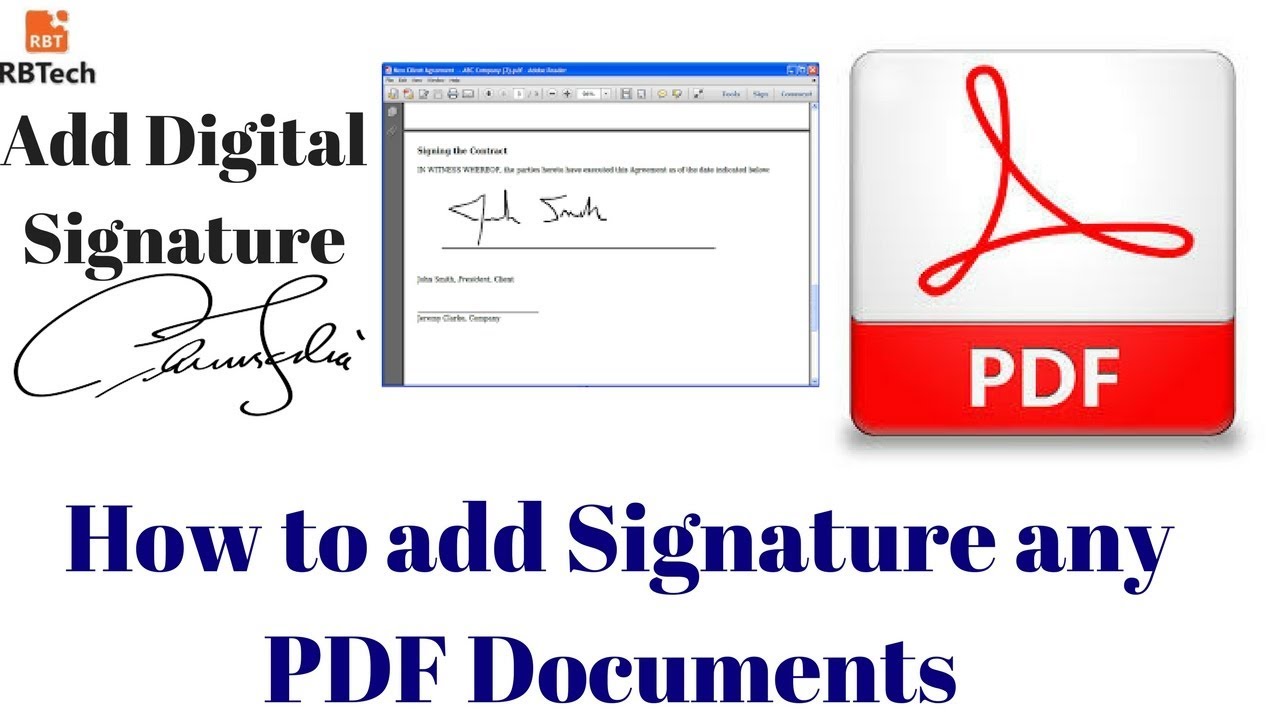
    2. Click the "Sign" button in the toolbar.
    3. A pop-up window will appear. Select "Add Signature" and then choose "Draw Signature."
    4. A signature pad will appear. Use your mouse or trackpad to sign your name.
    5. Click the "Apply" button to save your signature.
    6. You can now add your signature to the document by clicking the "Sign" button and selecting "Place Signature."

    2. Using Microsoft Word

    Microsoft Word is another popular software that can be used to sign PDF documents. However, you will need to convert the PDF document to a Word document before you can add a signature.

    1. Open the PDF document you want to sign in Microsoft Word.
    2. Click the "File" tab and then select "Convert" in the left pane.
    3. Select "PDF/XPS Document" and then click the "OK" button.
    4. The PDF document will be converted to a Word document.
    5. Now, you can add a signature to the document by clicking the "Insert" tab and then selecting "Signature."
    6. A pop-up window will appear. Select "Create New Signature" and then choose "Ink Signature."
    7. A signature pad will appear. Use your mouse or trackpad to sign your name.
    8. Click the "OK" button to save your signature.
    9. You can now add your signature to the document by clicking the "Insert" tab and selecting "Signature" again.

    3. Using a Digital Signature Certificate

    A digital signature certificate is a digital document that verifies the identity of the signer. It is typically issued by a trusted third party, such as a certificate authority. Once you have a digital signature certificate, you can use it to sign PDF documents.

    1. Open the PDF document you want to sign in a PDF editor that supports digital signatures.
    2. Click the "Sign" button and then select "Add Signature."
    3. A pop-up window will appear. Select "Sign with Certificate" and then choose your digital signature certificate.
    4. Enter your certificate’s password and click the "OK" button.
    5. Your signature will be added to the document.

    Tips for Signing PDF Documents

    Here are some tips for signing PDF documents:

    • Use a consistent signature. Your signature should be the same every time you sign a document.
    • Make sure your signature is legible. Your signature should be easy to read and understand.
    • Use a secure password for your digital signature certificate. Your password should be at least 12 characters long and include a mix of uppercase and lowercase letters, numbers, and symbols.
    • Keep your digital signature certificate private. Do not share your certificate with anyone else.

    Conclusion

    Adding a digital signature to a PDF document is essential for authenticating the document, ensuring its integrity, and complying with regulations. There are several ways to sign a PDF document, depending on your device, software, and preferences. When signing a PDF document, it is essential to use a consistent signature, legible signature, secure password for your digital signature certificate, and keep your digital signature certificate private.