Author: admin

  • Document Translation Services in the US?

    Document Translation Services in the US?

    Document Translation Services in the United States: An In-depth Analysis

    Introduction

    In today’s globalized world, businesses and individuals are increasingly required to communicate across language barriers. Document translation services play a crucial role in facilitating this communication by enabling the translation of documents from one language to another. The US, being a hub for international trade and commerce, has a significant demand for document translation services. This article delves into the current landscape of document translation services in the US, examining industry trends, key players, pricing structures, and emerging technologies.

    Market Overview

    The US document translation services market is projected to reach a value of $12.4 billion by 2026, expanding at a compound annual growth rate (CAGR) of 6.2% from 2021 to 2026. This growth is attributed to factors such as increasing globalization, rising cross-border trade, and the growing adoption of digital transformation across industries.

    Key Trends Shaping the Industry

    1. Globalization and International Trade: The rise of globalization has led to increased demand for document translation services to facilitate communication between businesses and customers across borders.
    2. Digital Transformation: Digital transformation and the adoption of cloud-based technologies have revolutionized the way document translation services are delivered, enabling faster and more efficient translation processes.
    3. Technology Advancements: Advancements in machine translation (MT) technology, such as neural machine translation (NMT), have improved the accuracy and quality of machine-translated content.
    4. Language Diversity: The US is home to a diverse population speaking various languages, leading to a growing demand for translation services that cater to specific language pairs.
    5. Regulatory Compliance: Stringent regulatory requirements in various industries, such as healthcare and finance, have increased the need for accurate and reliable document translation services.

    Industry Players

    The US document translation services market is characterized by the presence of both established multinational companies and specialized translation agencies. Some of the leading players in the industry include:

    1. Lionbridge: A global provider of language translation and localization services, offering a wide range of solutions for businesses and industries.
    2. TransPerfect: A leading provider of language translation and interpretation services, serving clients in diverse industries across the world.
    3. SDL (RWS): A global provider of language technology and translation services, offering solutions for enterprise clients in various sectors.
    4. Moravia: A specialized translation company focused on technical and scientific translations, serving clients in industries such as engineering, manufacturing, and healthcare.

    Pricing Structures

    Pricing models for document translation services vary based on several factors, including the language pair, document complexity, volume of content, and turnaround time. Common pricing structures include:

    1. Per-word Pricing: This is the most straightforward pricing model, where translators charge a fixed rate per word of the source text to be translated.
    2. Per-page Pricing: In this model, translators charge a fixed rate for each page of the translated document, regardless of the number of words.
    3. Hourly Pricing: Some translators charge an hourly rate for their services, particularly for complex or specialized translations.
    4. Project-based Pricing: For large or complex translation projects, translators may offer project-based pricing, where they charge a fixed fee for the entire project.

    Emerging Technologies

    Advancements in technology are transforming the document translation services industry. Some notable emerging technologies include:

    1. Machine Translation (MT): MT technology utilizes AI and statistical models to translate text without human intervention. While MT is still imperfect, it offers quick and cost-effective solutions for basic translations.
    2. Neural Machine Translation (NMT): NMT is an advanced form of MT that uses neural networks to learn and translate text, resulting in improved accuracy and fluency in translations.
    3. Translation Memory (TM): TM technology stores previously translated segments of text and reuses them when similar content is encountered in future translations, improving efficiency and consistency.
    4. Computer-Assisted Translation (CAT) Tools: CAT tools provide translators with various features to streamline the translation process, including machine translation integration, terminology management, and quality assurance.

    Challenges and Opportunities

    The document translation services industry faces several challenges and opportunities:

    1. Data Security and Privacy: Ensuring the security and privacy of sensitive data is a crucial challenge for translation service providers, especially when dealing with confidential or legally binding documents.
    2. Meeting Regulatory Requirements: The need to comply with stringent regulatory requirements in various industries places additional pressure on translation service providers to deliver accurate and compliant translations.
    3. Quality Control: Maintaining consistently high-quality translations remains a challenge, especially when dealing with complex or specialized content.
    4. Technological Disruption: The rapid evolution of translation technologies, such as MT and NMT, presents both opportunities and challenges for translation service providers to adapt and stay competitive.
    5. Global Expansion: Expanding into new geographic markets with diverse language requirements can be an opportunity for translation service providers to grow their business.

    Conclusion

    The document translation services market in the US is poised for continued growth as businesses and

  • How Do I Change a PDF to a Word Document?

    How Do I Change a PDF to a Word Document?

    How to Convert a PDF to a Word Document

    PDF (Portable Document Format) and Word documents are two of the most widely used file formats in the world. PDFs are great for sharing documents that need to maintain their formatting, such as official documents, presentations, and reports. Word documents, on the other hand, are more flexible and allow for easier editing and collaboration.

    There are many reasons why you might want to convert a PDF to a Word document. For example, you may need to edit the text or images in the PDF, or you may want to reuse the content in a Word document. Whatever your reason, there are a few different ways to convert a PDF to a Word document.

    Using Microsoft Word

    One of the easiest ways to convert a PDF to a Word document is to use Microsoft Word. Microsoft Word has a built-in PDF converter that can convert PDFs to Word documents with just a few clicks.

    1. Open Microsoft Word.
    2. Click the "File" tab.
    3. Click "Open."
    4. In the "Open" dialog box, select the PDF file you want to convert.
    5. Click "Open."
    6. A dialog box will appear asking you how you want to open the PDF file. Select "Convert to Microsoft Word Document."
    7. Click "OK."

    Microsoft Word will convert the PDF file to a Word document. The converted Word document will open in a new window.

    Using Adobe Acrobat

    Another option for converting a PDF to a Word document is to use Adobe Acrobat. Adobe Acrobat is a PDF editor that can be used to create, edit, and convert PDFs.

    1. Open Adobe Acrobat.
    2. Click the "File" tab.
    3. Click "Open."
    4. In the "Open" dialog box, select the PDF file you want to convert.
    5. Click "Open."
    6. Click the "Export PDF" button in the toolbar.
    7. In the "Export PDF" dialog box, select "Microsoft Word."
    8. Click "Export."

    Adobe Acrobat will convert the PDF file to a Word document. The converted Word document will be saved to the location you specified.

    Using a Free Online Converter

    There are also a number of free online converters that you can use to convert a PDF to a Word document. These converters typically work by uploading the PDF file to the converter’s website, and then downloading the converted Word document.

    Here are instructions for using a free online converter:

    1. Select a reputable online PDF to Word converter website.
    2. Upload your PDF file to the website.
    3. Select the output format as "Word document" or "DOCX".
    4. Click the "Convert" button.
    5. Download the converted Word document.

    Comparing the Different Methods

    The best method for converting a PDF to a Word document depends on your needs and preferences. If you have Microsoft Word or Adobe Acrobat, then you can use those programs to convert the PDF file. If you don’t have either of those programs, then you can use a free online converter.

    Here is a table that compares the different methods for converting a PDF to a Word document:

    Method Pros Cons
    Microsoft Word Easy to use Requires Microsoft Word
    Adobe Acrobat More powerful than Microsoft Word Requires Adobe Acrobat
    Free online converter No need to install any software May not be as reliable as Microsoft Word or Adobe Acrobat

    Troubleshooting

    If you are having trouble converting a PDF to a Word document, there are a few things you can try:

    • Make sure that you have the latest version of Microsoft Word or Adobe Acrobat installed.
    • Try using a different online converter.
    • Check the file size of the PDF file. Some online converters have a file size limit.
    • Make sure that the PDF file is not password-protected.
    • If you are still having trouble, you can contact the customer support team of the online converter you are using.

    Conclusion

    Converting a PDF to a Word document is a fairly simple process. By following the steps outlined in this article, you can easily convert any PDF file to a Word document.

  • How to Put Signature on PDF Document?

    How to Put Signature on PDF Document?

    How to Put Signature on PDF Document?

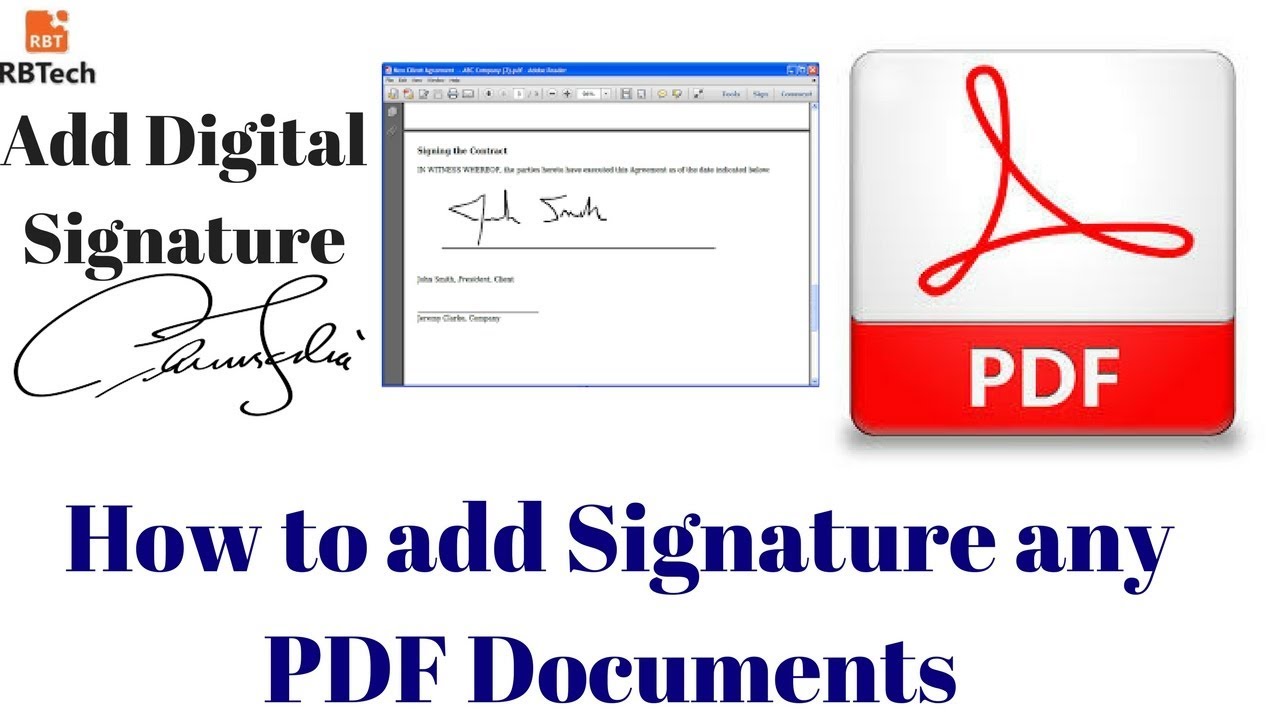
    A PDF (Portable Document Format) file is a versatile and portable file format that can be viewed and printed on various devices. It is often used for sharing documents that need to maintain their original formatting and layout. One of the essential features of a PDF document is the ability to add a digital signature. A digital signature allows the signer to authenticate the document and ensure its integrity.

    Why Sign a PDF Document?

    There are several reasons why you might need to sign a PDF document:

    • To authenticate the document: A digital signature can verify the signer’s identity and ensure that the document has not been tampered with. This is essential for documents that need to be legally binding, such as contracts, agreements, and financial statements.
    • To ensure document integrity: A digital signature can detect any changes made to the document after it was signed. This helps prevent fraud and ensures that the document remains valid even if it is shared or copied.
    • To comply with regulations: Many industries and organizations have regulations that require documents to be signed electronically. For example, the U.S. Food and Drug Administration (FDA) requires electronic signatures for certain types of documents related to drug development and manufacturing.

    How to Sign a PDF Document

    There are several ways to sign a PDF document, depending on your device, software, and preferences.

    1. Using Adobe Acrobat Reader

    Adobe Acrobat Reader is a widely used free software for viewing and editing PDF documents. It also includes a built-in feature for adding digital signatures.

    1. Open the PDF document you want to sign in Adobe Acrobat Reader.
    2. Click the "Sign" button in the toolbar.
    3. A pop-up window will appear. Select "Add Signature" and then choose "Draw Signature."
    4. A signature pad will appear. Use your mouse or trackpad to sign your name.
    5. Click the "Apply" button to save your signature.
    6. You can now add your signature to the document by clicking the "Sign" button and selecting "Place Signature."

    2. Using Microsoft Word

    Microsoft Word is another popular software that can be used to sign PDF documents. However, you will need to convert the PDF document to a Word document before you can add a signature.

    1. Open the PDF document you want to sign in Microsoft Word.
    2. Click the "File" tab and then select "Convert" in the left pane.
    3. Select "PDF/XPS Document" and then click the "OK" button.
    4. The PDF document will be converted to a Word document.
    5. Now, you can add a signature to the document by clicking the "Insert" tab and then selecting "Signature."
    6. A pop-up window will appear. Select "Create New Signature" and then choose "Ink Signature."
    7. A signature pad will appear. Use your mouse or trackpad to sign your name.
    8. Click the "OK" button to save your signature.
    9. You can now add your signature to the document by clicking the "Insert" tab and selecting "Signature" again.

    3. Using a Digital Signature Certificate

    A digital signature certificate is a digital document that verifies the identity of the signer. It is typically issued by a trusted third party, such as a certificate authority. Once you have a digital signature certificate, you can use it to sign PDF documents.

    1. Open the PDF document you want to sign in a PDF editor that supports digital signatures.
    2. Click the "Sign" button and then select "Add Signature."
    3. A pop-up window will appear. Select "Sign with Certificate" and then choose your digital signature certificate.
    4. Enter your certificate’s password and click the "OK" button.
    5. Your signature will be added to the document.

    Tips for Signing PDF Documents

    Here are some tips for signing PDF documents:

    • Use a consistent signature. Your signature should be the same every time you sign a document.
    • Make sure your signature is legible. Your signature should be easy to read and understand.
    • Use a secure password for your digital signature certificate. Your password should be at least 12 characters long and include a mix of uppercase and lowercase letters, numbers, and symbols.
    • Keep your digital signature certificate private. Do not share your certificate with anyone else.

    Conclusion

    Adding a digital signature to a PDF document is essential for authenticating the document, ensuring its integrity, and complying with regulations. There are several ways to sign a PDF document, depending on your device, software, and preferences. When signing a PDF document, it is essential to use a consistent signature, legible signature, secure password for your digital signature certificate, and keep your digital signature certificate private.

  • How to Switch PDF to Word Document?

    How to Switch PDF to Word Document?

    How to Switch PDF to Word Document: A Step-by-Step Guide for 2023

    In the digital age, documents in Portable Document Format (PDF) have become ubiquitous. Their versatility and ability to preserve formatting have made them the go-to choice for sharing information across different platforms and devices. However, there are times when you may need to convert a PDF document into a Microsoft Word (.docx) format for editing, collaboration, or other purposes. Fortunately, there are several methods available to make this conversion quickly and easily.

    Prerequisites:

    • Original PDF File: The PDF document you want to convert to a Word file.
    • Microsoft Word: Ensure that you have access to Microsoft Word or a compatible word processing software installed on your computer.
    • Internet Connection (Optional): Some methods may require an internet connection.

    Step-by-Step Guide:

    1. Use Microsoft Word’s Built-in Conversion Feature:

      Microsoft Word provides a direct way to convert PDF documents to Word format. Follow these steps:

      a. Open Microsoft Word on your computer.
      b. Click the "File" tab in the upper-left corner.
      c. Select "Open" from the menu and locate the PDF file you want to convert.
      d. Click the "Open" button.

      Word will automatically start the conversion process. Once complete, the PDF content will be displayed in a Word document.

    2. Leverage Online PDF to Word Converters:

      If you don’t have Microsoft Word installed or prefer an online option, there are numerous websites that offer free PDF to Word conversion services. Here’s how to use them:

      a. Choose a reliable online PDF converter website, such as Adobe Acrobat, Smallpdf, Zamzar, or PDF2Doc.
      b. Visit the website and locate the "PDF to Word" or "Convert PDF to Word" option.
      c. Upload your PDF file using the "Choose File" or "Browse" button.
      d. Select the output format as "Microsoft Word (.docx)" or "Word Document (.doc)".
      e. Click the "Convert" or "Start" button to initiate the conversion process.
      f. Once the conversion is complete, download the converted Word document to your computer.

    3. Utilize Third-Party Software:

      If you require more advanced conversion features or batch processing capabilities, you can use dedicated PDF to Word converter software. Some popular options include:

      • Adobe Acrobat Pro: A comprehensive PDF editing and conversion tool with a wide range of features.
      • Nitro Pro: Another popular PDF editor with robust conversion capabilities.
      • PDFelement: A feature-rich PDF editor and converter known for its user-friendly interface.

      These software typically offer trial versions or subscription plans. Follow the software’s instructions to install, launch, and perform the PDF to Word conversion.

    4. Convert PDF to Word Using Google Docs:

      Google Docs is a cloud-based word processor that also allows you to convert PDF files to Word format. Here’s how to do it:

      a. Open Google Docs in your web browser.
      b. Click the "+" button in the top-left corner to create a new document.
      c. In the menu bar, click "File" and select "Open".
      d. Choose the "Upload" tab and select your PDF file.
      e. Click the "Open" button to upload the PDF.
      f. Google Docs will automatically convert the PDF to a Google Docs document.
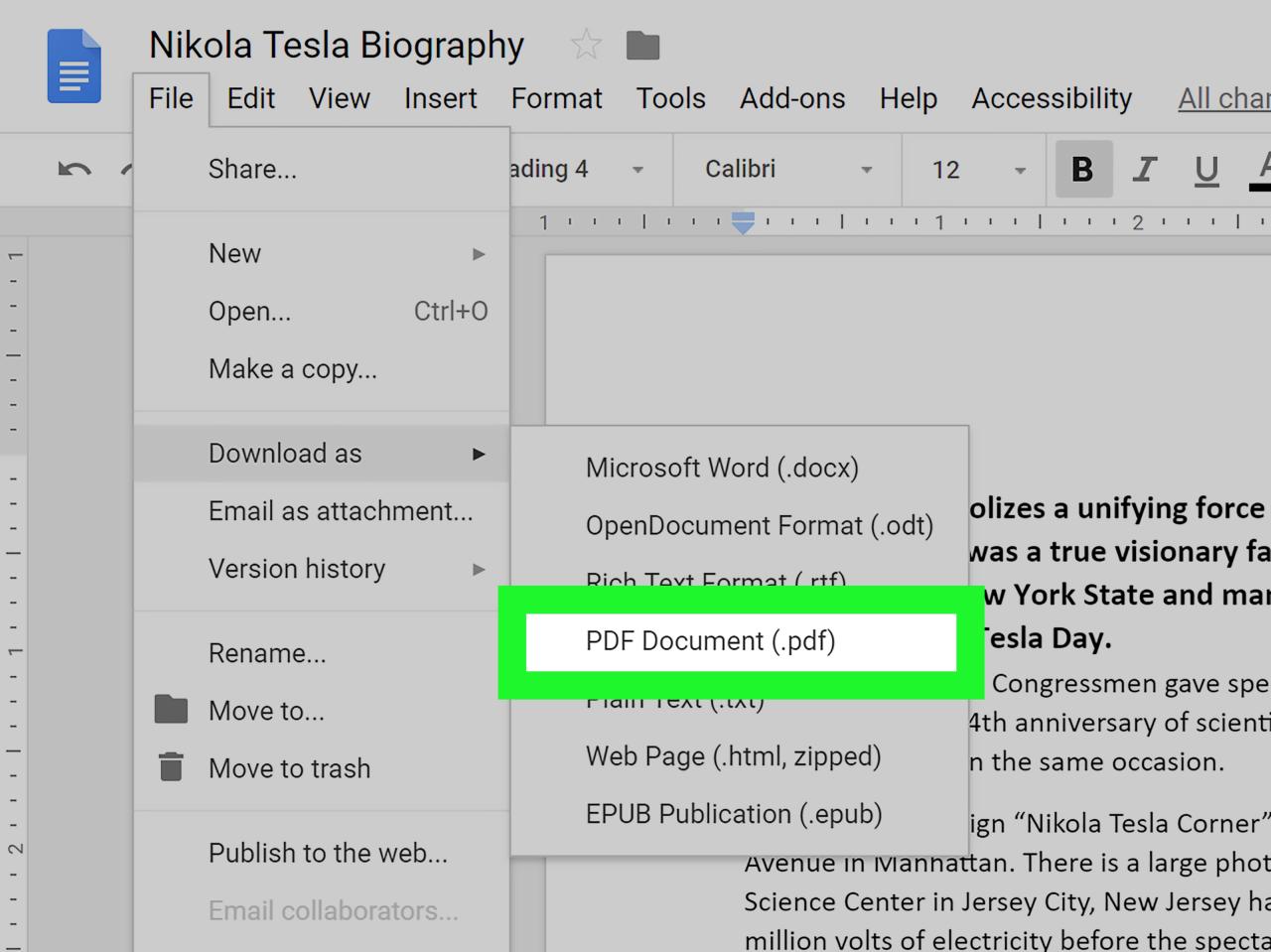
      g. To download the converted document as a Word file, click "File" > "Download" > "Microsoft Word (.docx)".

    5. Consider Using a Mac’s Preview App (macOS Only):

      If you’re using a Mac, you can use the built-in Preview app to convert PDF documents to Word format. Follow these steps:

      a. Open the PDF file in Preview.
      b. Click the "File" menu and select "Export".
      c. In the "Export As" dialog box, choose "Word" or "RTF" as the format.
      d. Specify a filename and location to save the converted document.
      e. Click the "Save" button to export the PDF as a Word document.

    Tips for Successful PDF to Word Conversion:

    • Choose the conversion method that best suits your needs and preferences.
    • Ensure that the online PDF converter you select is reputable and secure.
    • Convert PDF files one at a time to maintain accuracy and avoid errors.
    • If you experience issues during conversion, try using a different method or software.
    • Always proofread the converted Word document to ensure the content is intact and correctly formatted.

    In conclusion, switching a PDF document to a Word document is a straightforward process with several available methods. Whether you use Microsoft Word’s built-in feature, online converters, third-party software, Google Docs, or the Mac Preview app, you can easily achieve this conversion and continue editing, collaborating, or sharing your document in the desired format.

  • How Can I Type on a PDF Document?

    How Can I Type on a PDF Document?

    How Can I Type on a PDF Document?

    Overview

    PDF documents are a common file format used for sharing documents across different platforms and devices. They are often used for official documents, presentations, and other important documents that need to be preserved in their original format. However, PDF documents are not natively editable, which means you cannot directly type or make changes to the text within the document. To type on a PDF document, you will need to use a PDF editor or a specialized tool that allows you to edit PDF files.

    Using a PDF Editor

    PDF editors are software programs that allow you to view, edit, and manipulate PDF documents. There are many different PDF editors available, both free and paid, each with its own features and capabilities. Some popular PDF editors include:

    • Adobe Acrobat DC
    • Foxit Reader
    • Nitro PDF Pro
    • PDF-XChange Editor
    • PDFelement

    To type on a PDF document using a PDF editor, simply open the document in the editor and click on the "Edit" or "Typewriter" tool. This will allow you to add text, images, and other elements to the document. You can also use the editor to make changes to the existing text, such as changing the font, size, and color.

    Using a Specialized Tool

    In addition to PDF editors, there are also specialized tools available that allow you to type on PDF documents. These tools are typically designed for specific purposes, such as filling out forms or adding annotations. Some popular specialized tools include:

    • PDFfiller
    • DocuSign
    • Adobe Fill & Sign
    • Smallpdf
    • Soda PDF

    To type on a PDF document using a specialized tool, simply open the document in the tool and follow the instructions provided. These tools typically have a user-friendly interface that makes it easy to add text, images, and other elements to the document.

    Considerations for Typing on a PDF Document

    When typing on a PDF document, there are a few things you should keep in mind:

    • Font and Size: Make sure the font and size of the text you are adding are consistent with the rest of the document.
    • Color: Use a color that is easy to read and does not clash with the background color of the document.
    • Alignment: Align the text properly with the rest of the document.
    • Grammar and Spelling: Proofread your text carefully before saving the document.
    • File Format: When you save the document, make sure to choose a file format that is compatible with your intended audience.

    Conclusion

    Typing on a PDF document is a relatively simple task that can be done using a variety of tools. By following the steps outlined in this article, you can easily add text, images, and other elements to a PDF document.

  • Document Shredding Near Me: A Comprehensive Guide for Securing Your Confidential Information

    document shredding near me

    Document Shredding Near Me: A Comprehensive Guide for Securing Your Confidential Information

    In the digital age, we still generate a significant amount of paper documents containing sensitive information, ranging from financial records and medical reports to legal contracts and personal correspondence. Ensuring the secure disposal of these documents is crucial to safeguard our privacy and prevent identity theft or data breaches. Document shredding services offer a convenient and secure solution for destroying confidential documents, providing peace of mind and reducing the risk of information compromise.

    Why Document Shredding Matters

    1. Identity Theft Prevention: Shredding documents helps protect against identity theft by destroying personal information, such as Social Security numbers, credit card numbers, and addresses, making it difficult for criminals to access and misuse this data.

    2. Data Security: Shredding confidential business documents prevents unauthorized access to sensitive information, reducing the risk of data breaches and safeguarding company reputation.

    3. Compliance with Regulations: Many industries and organizations are required to adhere to specific data protection regulations, such as HIPAA in healthcare, PCI DSS in finance, and GDPR in the European Union. Proper document shredding ensures compliance with these regulations and mitigates legal risks.

    4. Environmental Sustainability: Shredding paper documents allows for recycling, contributing to environmental sustainability and reducing waste disposal in landfills.

    How to Find Document Shredding Services Near You

    1. Online Directories: Websites like ShredNation, Iron Mountain, and National Association for Information Destruction (NAID) provide comprehensive listings of document shredding companies in your area.

    2. Local Businesses: Check local office supply stores, printing shops, and business centers that often offer document shredding services.

    3. Mobile Shredding Services: Some companies offer mobile shredding services, where they come to your location with a shredding truck to destroy your documents on-site.

    4. Community Events: Many cities and organizations host document shredding events, providing a convenient way to securely dispose of your documents while supporting local initiatives.

    Choosing a Document Shredding Company

    1. Reputation and Experience: Look for companies with a good reputation, positive customer reviews, and years of experience in the document shredding industry.

    2. Certifications and Compliance: Ensure that the company is certified by reputable organizations like NAID, which sets standards for secure document destruction.

    3. Security Measures: Inquire about the company’s security measures, such as secure collection containers, background-checked employees, and proper disposal processes.

    4. Cost and Convenience: Compare prices and services offered by different companies to find one that fits your budget and needs, considering factors like mobile shredding, on-site shredding, and frequency of service.

    Preparing Documents for Shredding

    1. Remove Sensitive Information: Before shredding, remove any sensitive information, such as credit card receipts, financial statements, or medical records, that may contain personal or confidential data.

    2. Separate Documents: Separate documents containing sensitive information from regular paper waste to ensure proper shredding.

    3. Remove Staples and Paperclips: Remove staples, paperclips, and other metal objects from documents to prevent damage to the shredding machine.

    4. Flatten and Fold Documents: Flatten and fold documents neatly to make them easier to feed into the shredder.

    Document Shredding Options

    1. Drop-Off Shredding: Take your documents to a designated drop-off location, typically at a shredding company’s facility or a participating retail store.

    2. On-Site Shredding: Arrange for a mobile shredding truck to come to your location for on-site destruction of your documents.

    3. Mail-Back Shredding: Some companies offer mail-back shredding services, where you send your documents in a secure envelope provided by the company, and they return the shredded material to you.

    Benefits of Using a Document Shredding Service

    1. Security: Document shredding services provide a secure and reliable way to dispose of confidential documents, reducing the risk of identity theft and data breaches.

    2. Convenience: Professional shredding services offer convenient options, such as drop-off locations, on-site shredding, and mail-back services, catering to different needs and schedules.

    3. Compliance: Utilizing document shredding services can help businesses and organizations comply with data protection regulations and industry standards.

    4. Environmental Sustainability: Shredding companies often recycle shredded paper, promoting environmental sustainability and minimizing waste disposal.

    Conclusion

    Document shredding is a crucial aspect of protecting your confidential information and ensuring data security. By choosing a reputable document shredding company near you, you can securely dispose of sensitive documents, prevent identity theft, comply with regulations, and contribute to environmental sustainability. Remember to prepare your documents properly, consider the available shredding options, and weigh the benefits of using a professional shredding service to maintain the privacy and security of your sensitive information.

  • Document Printing at Walgreens: A Comprehensive Guide

    document print walgreens

    Document Printing at Walgreens: A Comprehensive Guide (2023)

    Walgreens, a leading pharmacy chain in the United States, offers a wide range of services beyond dispensing medications. One such service is document printing, which allows customers to conveniently print various documents from digital files. This article provides a comprehensive guide to document printing at Walgreens, covering key aspects such as available services, pricing, supported file formats, order placement methods, and helpful tips.

    Available Services

    Walgreens offers a variety of document printing options to cater to different customer needs. These services include:

    1. Black and White Copies: Customers can print black and white copies of documents, including text, images, and graphics.

    2. Color Copies: Walgreens also provides color copies for documents that require vibrant visuals or images.

    3. Enlargements and Reductions: Customers can enlarge or reduce the size of their documents to suit their specific requirements.

    4. Binding and Finishing Services: Walgreens offers binding services, such as stapling, spiral binding, and comb binding, to help organize and protect printed documents.

    Pricing

    The cost of document printing at Walgreens varies depending on the type of service and the number of copies or pages. Here’s a breakdown of the pricing structure:

    1. Black and White Copies:

      • 1-10 Pages: $0.10 per page

      • 11-50 Pages: $0.08 per page

      • 51-100 Pages: $0.06 per page

      • 101+ Pages: $0.04 per page

    2. Color Copies:

      • 1-10 Pages: $0.50 per page

      • 11-50 Pages: $0.40 per page

      • 51-100 Pages: $0.30 per page

      • 101+ Pages: $0.20 per page

    3. Enlargements and Reductions:

      • 1-10 Pages: $0.20 per page

      • 11-50 Pages: $0.15 per page

      • 51-100 Pages: $0.10 per page

      • 101+ Pages: $0.08 per page

    4. Binding and Finishing Services:

      • Stapling: $2.00 per document

      • Spiral Binding: $5.00 per document

      • Comb Binding: $10.00 per document

    Supported File Formats

    Walgreens accepts a wide range of file formats for printing, ensuring compatibility with various document types and applications. Some of the commonly supported file formats include:

    1. Microsoft Office Suite: DOC, DOCX, XLS, XLSX, PPT, PPTX

    2. Adobe Acrobat: PDF

    3. Text Files: TXT

    4. Image Files: JPG, PNG, GIF, TIFF, BMP

    5. Web Pages: HTML, HTM

    Order Placement Methods

    Customers can place their document printing orders at Walgreens through different methods, offering convenience and flexibility. These methods include:

    1. In-Store Printing: Customers can visit their nearest Walgreens store, bring their digital files on a USB drive or mobile device, and place their printing order at the photo center or designated printing station.

    2. Online Printing: Walgreens provides an online printing platform where customers can upload their digital files, select their desired printing options, and place their orders remotely.

    3. Mobile App Printing: Walgreens offers a mobile app that allows customers to upload documents from their smartphones or tablets, choose their printing preferences, and place their orders on the go.

    4. Email Printing: Customers can send their digital files via email to a designated Walgreens email address provided on their website or in-store. The store will then process the printing order and notify the customer for pickup.

    Helpful Tips for Document Printing at Walgreens

    To ensure a smooth and successful document printing experience at Walgreens, consider the following tips:

    1. Prepare Your Files Properly: Before placing your order, ensure that your digital files are in the desired format and resolution. Convert any incompatible files to supported formats if necessary.

    2. Check Your File Size: Walgreens imposes file size limits for online orders. Make sure your files are within the specified size limit to avoid any issues during uploading.

    3. Choose the Right Printing Options: When placing your order, carefully select the printing preferences, such as paper quality, color or black and white, single-sided or double-sided printing, and any special finishing

  • Create Editable PDF Documents: A Comprehensive Guide with Recent Data

    create editable pdf document

    Create Editable PDF Documents: A Comprehensive Guide with Recent Data

    Introduction:

    Portable Document Format (PDF) has become a ubiquitous file format for sharing documents, retaining formatting and content integrity across different platforms and devices. However, the ability to create editable PDF documents has opened up a new realm of convenience and productivity. This guide explores the latest data and trends surrounding editable PDF documents, providing a comprehensive overview of the tools, techniques, and best practices for creating and editing PDFs.

    1. Understanding Editable PDF Documents:

    Editable PDF documents are digital files that allow users to modify and manipulate text, images, and other elements within the document. This functionality enables users to make changes, add annotations, and collaborate on the document in real-time, enhancing the flexibility and utility of PDF files.

    2. Recent Data on Editable PDF Document Creation:

    • Market Trend: The demand for editable PDF documents has witnessed a steady rise in recent years, driven by the increasing need for digital collaboration, remote work, and document sharing across various industries.
    • User Survey: A survey conducted by Adobe in 2022 found that 72% of respondents rely on editable PDF documents for work and personal purposes, highlighting the growing adoption of this technology.
    • Growth in Software Solutions: The market for PDF editing software has also experienced significant growth, with various software solutions offering a range of features to create and edit PDF documents.

    3. Tools and Techniques for Creating Editable PDF Documents:

    3.1. PDF Editing Software:

    • Adobe Acrobat Pro DC: Adobe Acrobat Pro DC is the industry-leading PDF editing software, offering a comprehensive set of tools for creating, editing, and converting PDF documents.
    • Foxit PDF Editor: Foxit PDF Editor is a popular alternative to Adobe Acrobat, known for its user-friendly interface and compatibility with various file formats.
    • Nitro PDF Pro: Nitro PDF Pro is another feature-rich PDF editor that allows users to create, edit, and annotate PDF documents with ease.

    3.2. Online PDF Editors:

    • Adobe Acrobat Online: Adobe Acrobat Online is a cloud-based PDF editor that enables users to create and edit PDF documents from any device with an internet connection.
    • Smallpdf: Smallpdf is an online PDF editor that offers a range of basic editing features, including text editing, image insertion, and document merging.
    • PDFescape: PDFescape is another online PDF editor that provides a variety of editing tools, including the ability to add text, images, and signatures to the document.

    3.3. Browser Extensions and Plug-ins:

    • Kami: Kami is a browser extension that allows users to annotate, highlight, and collaborate on PDF documents within their web browser.
    • DocHub: DocHub is a browser extension and web-based platform that enables users to create, edit, and share PDF documents with others in real-time.
    • PDF Annotator: PDF Annotator is a browser extension that provides a range of annotation tools, including the ability to highlight text, add notes, and draw shapes.

    4. Best Practices for Creating Editable PDF Documents:

    • High-Quality Original Document: Start with a high-quality original document, ensuring that the text and images are clear and properly formatted.
    • Use Optical Character Recognition (OCR): If working with a scanned document, use OCR software to convert the scanned text into editable text.
    • Select the Right PDF Editor: Choose a PDF editor that best suits your needs and preferences, considering features, compatibility, and ease of use.
    • Enable Editing Permissions: Ensure that the PDF document’s permissions allow for editing, as some PDF files may have restrictions that prevent modifications.
    • Save as Editable PDF: When saving the document, select the "Save as Editable" or "Save as PDF/A" option to maintain the document’s editability.

    5. Collaborative Editing and Security Considerations:

    5.1. Collaborative Editing:

    • Real-Time Collaboration: Many PDF editors offer real-time collaboration features, allowing multiple users to simultaneously edit and make changes to the document.
    • Version Control: Utilize version control systems to keep track of changes and allow users to revert to previous versions if needed.

    5.2. Security Considerations:

    • Password Protection: Employ password protection to restrict access to the PDF document and prevent unauthorized editing.
    • Digital Signatures: Use digital signatures to verify the authenticity of the document and ensure that it has not been tampered with.

    Conclusion:

    The ability to create editable PDF documents has revolutionized the way we interact with digital documents, offering increased flexibility, collaboration, and productivity. By leveraging the tools, techniques, and best practices outlined in this guide, users can seamlessly create and edit PDF documents, enhancing their document workflow and enabling effective collaboration in the digital age.

  • How Do I Compress a PDF Document?

    How Do I Compress a PDF Document?

    How to Compress a PDF Document

    Introduction
    In today’s electronic document-driven world, files are sent, stored, and accessed on a daily basis. Some of the most popular and widely used document files are PDF files. However, PDF files can sometimes be quite large, which can make them difficult to share or store. Fortunately, there are a number of ways to compress a PDF document, making it smaller without losing any of its content or quality.

    Why Compress a PDF Document?

    There are several reasons why someone might want to compress a PDF document:

    • Emailing: Compressing a PDF document can make it easier to send the file via email, especially if the file size is large. This enables users to share documents quickly and securely.
    • Saving Storage Space: Compressed PDF documents take up less storage space on a computer or server, making it more efficient to store and manage multiple PDF files.
    • Uploading to Websites: Many websites have file size limits for uploading documents. Compressing a PDF document can help ensure that it meets the file size requirements of a particular website.
    • Improving Download Times: Compressing a PDF document can reduce the amount of time it takes to download the file from a server or website, improving user experience and productivity.
    • Archiving: Compressed PDF documents are often used for archiving purposes, as they take up less space and can be stored more easily.

    Methods of Compressing a PDF Document

    There are several different methods available for compressing a PDF document. Some of the most popular methods include:

    1. Using Built-in PDF Optimization Tools

    Many PDF software programs, such as Adobe Acrobat, have built-in optimization tools that allow users to compress PDF documents without losing any of their content or quality. These tools usually offer a variety of optimization options, allowing users to choose the level of compression that best suits their needs.

    2. Using Free Online PDF Compressors

    There are a number of free online PDF compressors available that allow users to compress PDF documents quickly and easily. Simply upload the PDF document to the website, and the compressor will automatically reduce the file size. Some popular free online PDF compressors include:

    3. Using Command-Line Tools

    For more advanced users, there are a number of command-line tools available that can be used to compress PDF documents. These tools are typically more powerful than the built-in optimization tools found in PDF software programs, but they can also be more difficult to use.

    How to Choose the Right Compression Method

    The best compression method for a particular PDF document will depend on a number of factors, including the size of the document, the quality of the images and graphics, and the desired level of compression. It is generally recommended to start with the built-in optimization tools found in PDF software programs, as these tools are easy to use and can provide good results. If the built-in optimization tools do not provide satisfactory results, then you can try using a free online PDF compressor or a command-line tool.

    Tips for Compressing a PDF Document

    Here are a few tips for compressing a PDF document:

    • Remove Unnecessary Pages: Before compressing a PDF document, take a few moments to remove any unnecessary pages. This can significantly reduce the file size of the document.
    • Reduce the Resolution of Images: If the PDF document contains images, reduce the resolution of the images to a lower level. This can reduce the file size of the document without noticeably affecting the quality of the images.
    • Convert Images to JPEG: If the PDF document contains images, convert the images to JPEG format. JPEG is a lossy compression format, which means that some data is lost during compression. However, JPEG images can be compressed to a much smaller file size than other image formats, such as PNG or TIFF.
    • Use a Higher Compression Level: Most PDF optimization tools and online compressors allow users to choose the level of compression that they want to use. A higher compression level will produce a smaller file size, but it can also result in a loss of quality. It is important to find a balance between file size and quality.

    Conclusion

    Compressing a PDF document is a great way to make it smaller and easier to share, store, and upload. There are a number of different methods available for compressing a PDF document, and the best method for a particular document will depend on a number of factors, such as the size of the document, the quality of the images and graphics

  • How Do You Make a Fillable PDF Document?

    Fillable PDF documents are an essential tool for businesses and individuals alike. They allow you to easily create forms that can be filled out and submitted electronically, saving you time and hassle.

    In this article, we’ll show you how to make a fillable PDF document using Adobe Acrobat Reader, the most popular PDF reader software.

    Step 1: Open the PDF Document

    The first step is to open the PDF document that you want to make fillable. You can do this by double-clicking on the file in File Explorer or by dragging and dropping it into the Acrobat Reader window.

    Step 2: Enable the “Edit” Toolbar

    Once the document is open, you need to enable the “Edit” toolbar. To do this, click on the “Edit” menu at the top of the window and then select “Enable Editing.”

    Step 3: Add Form Fields

    Now you can start adding form fields to the document. To do this, click on the “Form Fields” button in the “Edit” toolbar.

    A drop-down menu will appear with a variety of form field types to choose from, including text fields, checkboxes, radio buttons, and drop-down lists.

    To add a form field, simply click on the desired type and then click on the location in the document where you want to place it.

    Step 4: Customize the Form Fields

    Once you’ve added a form field, you can customize it by changing the font, size, color, and other properties.

    To do this, right-click on the form field and then select “Properties.”

    The “Properties” dialog box will appear, where you can make changes to the form field’s appearance and behavior.

    Step 5: Save the Document

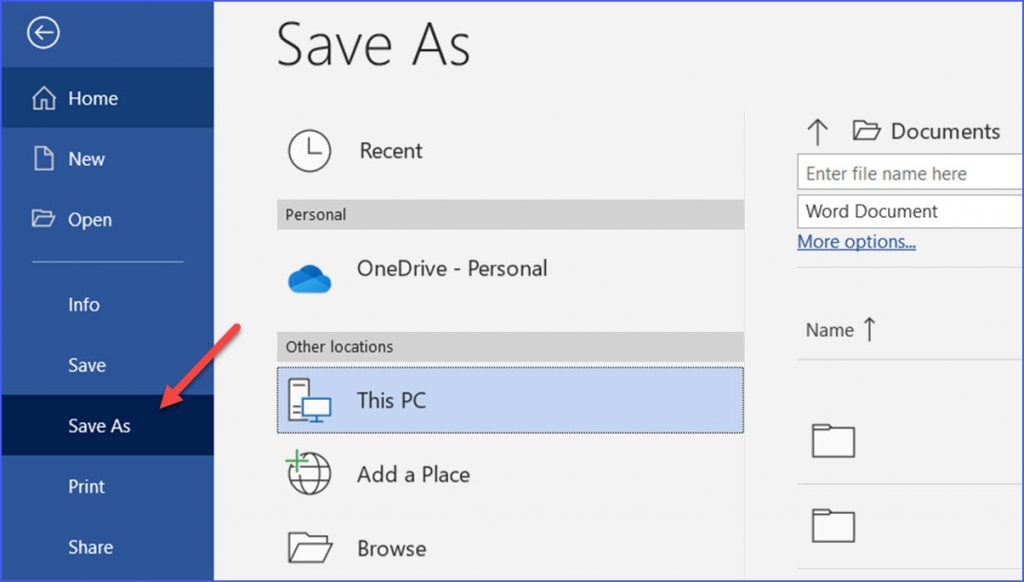
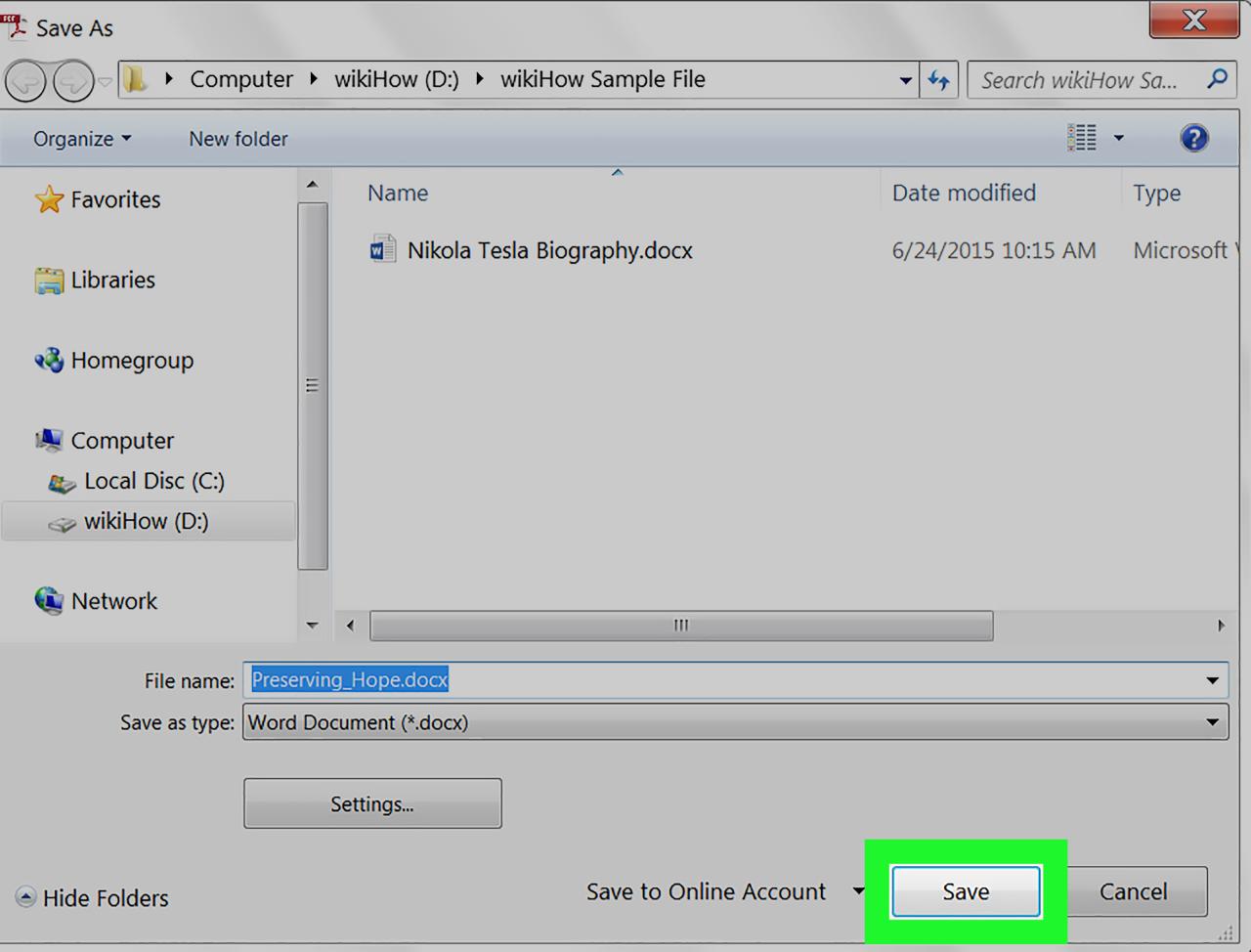
    When you’re finished adding and customizing form fields, click on the “File” menu and then select “Save As.”

    In the “Save As” dialog box, type a name for the fillable PDF document and then click on the “Save” button.

    Your fillable PDF document will now be saved to your computer. You can share it with others by sending them the file or by uploading it to a website.

    Tips for Creating Fillable PDF Documents

    Here are a few tips for creating fillable PDF documents:

    • Use clear and concise language.
    • Keep the form fields organized and easy to understand.
    • Use a consistent font and size for all of the form fields.
    • Test the form fields to make sure that they work properly.
    • Save the document in a format that is compatible with the software that you’ll be using to fill it out.

    Benefits of Using Fillable PDF Documents

    There are many benefits to using fillable PDF documents, including:

    • They save time and hassle.
    • They are easy to create and share.
    • They can be used to collect data from customers or clients.
    • They can be used to process orders or payments.
    • They can be used to create interactive forms for surveys or quizzes.

    Conclusion

    Fillable PDF documents are a versatile and powerful tool that can be used for a variety of purposes. By following the steps outlined in this article, you can easily create your own fillable PDF documents and enjoy the many benefits that they offer.