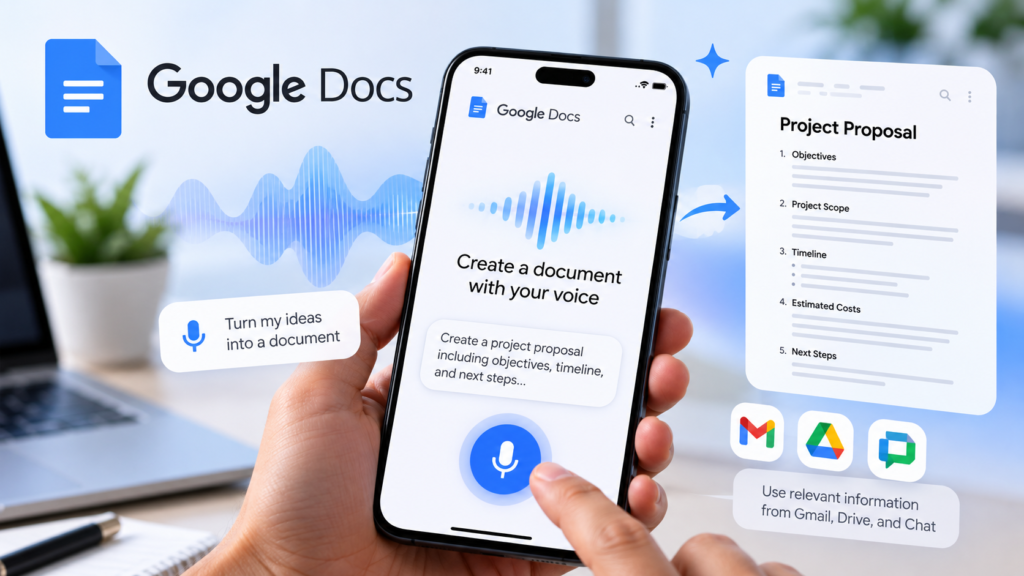
Google is rolling out Docs Live, a new AI-powered feature in Google Docs that helps eligible users create structured documents through natural voice conversations. Announced on October 21, 2026, the feature is designed to help users turn rough ideas into organized drafts directly in the Google Docs mobile app.
Unlike traditional voice typing, Docs Live uses Google’s Gemini technology to help users brainstorm, organize information, and develop a structured first draft. It can also draw on relevant information from Google Workspace sources, subject to the user’s access and settings.
For people who regularly prepare meeting summaries, project proposals, customer pitches, or business updates, the feature offers another way to create documents without typing every sentence manually.
What Is Google Docs Live?
Docs Live is an AI-powered document creation feature for the Google Docs mobile app on Android and iOS. It allows users to describe what they want to create through natural conversation and receive help turning those ideas into a structured document.
According to Google’s official announcement, the feature can help users create project updates, feature proposals, customer pitches, event plans, and presentation talking points.
Docs Live can also use relevant context from Gmail, Google Drive, Google Chat, and the web, depending on the user’s permissions and available sources.
The goal is to make document creation easier when users have ideas to capture but do not want to begin by manually organizing every paragraph.
How Is Docs Live Different From Traditional Voice Typing?
Traditional voice typing converts spoken words into written text. It is useful for dictating notes, messages, and paragraphs, but users generally need to organize and edit the resulting text themselves.
Docs Live takes a more conversational approach. Users describe the document they need, and Gemini helps develop the content and structure.
| Capability | Traditional voice typing | Docs Live |
|---|---|---|
| Convert speech into text | Yes | Uses spoken instructions to generate content |
| Organize ideas into a document | Mostly manual | AI-assisted |
| Refine content through conversation | Limited | Supported |
| Use relevant Workspace information | Not inherently | Available when eligible and permitted |
| Review the final result | Necessary | Necessary |
The main difference is the workflow. Rather than simply transcribing speech, Docs Live helps users move from an initial idea toward a more organized draft.
How to Create a Document With Docs Live
Eligible users can access Docs Live through the Google Docs mobile app. The exact interface and availability may vary as the feature rolls out.
1. Open the Google Docs mobile app
Launch Google Docs on your Android or iOS device and open the document creation interface.
Look for the option to create a document using voice. Google’s official help guide provides the latest instructions for locating and using this feature.
2. Describe what you want to create
Explain the purpose of the document and the information it should contain.
For example, you could say:
“Create a project proposal for a small business website redesign. Include the project objectives, scope, timeline, estimated costs, and next steps.”
You do not need to dictate every sentence. Instead, explain the desired result and let the AI help organize the initial draft.
3. Provide relevant context
If the task depends on existing information, Docs Live may be able to draw on relevant Google Workspace content, subject to permissions and available integrations.
For example, you might want to prepare a project update based on meeting notes and related email discussions.
Before generating a draft, verify that the relevant source materials are appropriate to use, especially when working with confidential business information.
4. Review the proposed document structure
Review the suggested organization and make adjustments where necessary.
You might ask for separate sections covering objectives, milestones, risks, and next steps. Clear instructions help the AI produce a draft that better matches your needs.
5. Generate and refine the draft
After confirming the direction, use Docs Live to develop the document. Refine the result by requesting changes to the organization, tone, level of detail, or wording.
For example, you could ask it to make a project update more concise or reorganize a proposal for a nontechnical audience.
6. Verify the final document
Before sharing or publishing the document, check names, dates, numbers, factual claims, and statements derived from reference materials.
AI-generated text can contain mistakes or misinterpret source information. Important documents should always receive a human review.
For the latest setup instructions, consult Google’s official Help Center guide to generating documents with voice in Google Docs.
Who Can Use Google Docs Live?
Google’s October 21 announcement lists the following eligible plans:
- Google Workspace Business Standard and Business Plus.
- Google Workspace Enterprise Standard and Enterprise Plus.
- Google AI Pro and Google AI Ultra consumer plans.
- Google AI Pro for Education.
- Eligible AI Expanded Access offerings.
The feature is not necessarily available to every Google Docs user. Access may depend on the subscription, administrator settings, account eligibility, and rollout status.
Google also provides instructions for administrators who need to manage access to Gemini features in Workspace.
Before subscribing to a paid plan specifically for Docs Live, check the latest official Google Workspace announcement and Google Docs Help Center.
What Are the Benefits of Docs Live?
Faster first drafts
Starting from a blank page can be difficult when you have several ideas but have not organized them yet. Describing the desired result in natural language can help you develop a starting point more quickly.
More natural brainstorming
Users can explain their goals conversationally instead of planning every sentence before writing.
This may be useful when preparing proposals, outlines, meeting summaries, and other structured business documents.
Better use of existing information
When the appropriate permissions and integrations are available, Docs Live can use relevant Workspace information to help provide context.
For example, a project update may benefit from information contained in meeting notes and related emails. Users should still verify that the generated document accurately represents those sources.
Convenient mobile document creation
Docs Live is designed for mobile use, which can help people capture ideas after meetings or while away from a computer.
However, convenience does not guarantee that every draft will be accurate or ready to publish. The time saved depends on the complexity of the task and the amount of editing required.
What Are the Limitations?
Docs Live should be treated as a drafting assistant rather than a replacement for careful writing and review.
Availability is restricted. Users without an eligible plan or enabled feature may not have access.
Generated content needs verification. The AI may misunderstand instructions, omit important information, or introduce inaccurate details. Financial, legal, contractual, and other high-impact documents require particularly careful review.
Source access depends on permissions. The information available to the feature depends on account settings, permissions, and supported integrations. Users should be careful when working with confidential emails, business files, or sensitive personal information.
Complex formatting may still require manual editing. Detailed tables, precise layouts, and specialized document formatting can require additional work after the initial draft is generated.
For these reasons, it is sensible to test Docs Live on a low-risk document before relying on it for important business or professional work.
Is Google Docs Live Worth Using?
Docs Live is worth considering for people who regularly create structured documents and want a more conversational way to begin the writing process.
Its main advantage is the ability to move from a rough description to an organized first draft. That can be useful for project updates, proposals, meeting summaries, and other documents that follow a recognizable structure.
However, the practical benefit depends on how much editing the output requires. A short document with a simple structure may be easy to create manually, while a more complex document may benefit from AI-assisted brainstorming and organization.
The best approach is to test the feature on a real but low-risk task, compare the result with your usual workflow, and evaluate the time saved.
Final Thoughts
Google Docs Docs Live adds another option for AI-assisted document creation. By combining natural voice instructions with AI-powered organization and relevant context, it aims to help eligible users create structured drafts more conveniently on mobile devices.
The feature does not eliminate the need for fact-checking, editing, or responsible data handling. Nevertheless, it may be useful for people who want to turn unstructured ideas into organized documents without starting from a blank page.
For the latest feature details and availability, read Google’s official Docs Live announcement and the Google Docs Help Center.