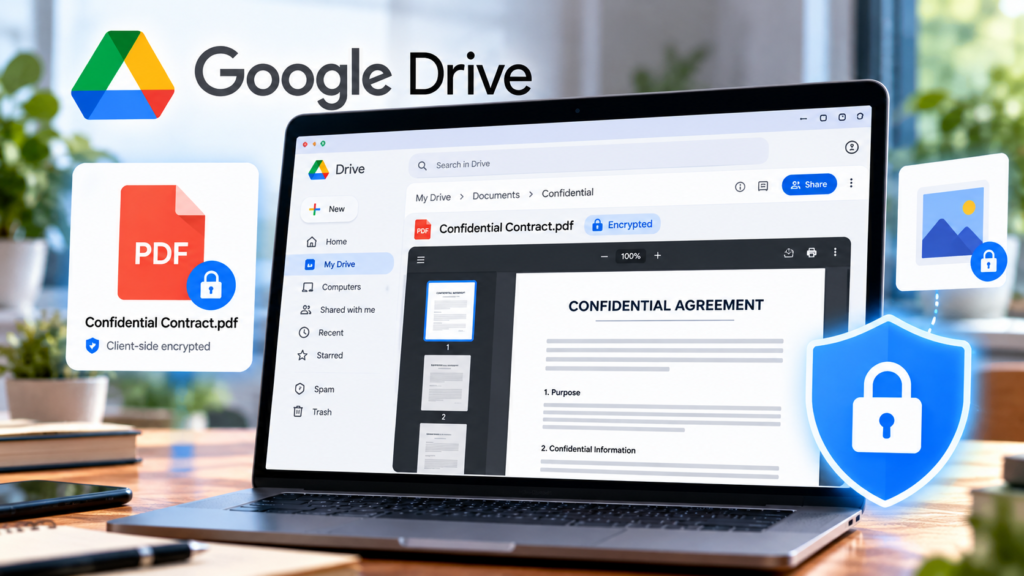
Google Drive has introduced a useful change for organizations that handle confidential documents: authorized users can now preview client-side encrypted PDFs and images directly in their browser, without downloading them first.
The feature became generally available on October 15, 2026, according to Google Workspace Updates. Previously, users needed to download supported encrypted files to their local devices to view their contents. The new capability lets eligible users open these files within Google Drive while retaining the protection provided by client-side encryption.
For businesses that work with confidential contracts, financial documents, compliance records, and sensitive images, this update can make everyday document handling more convenient without removing an important layer of data protection.
Official announcement: Google Drive now supports previews of client-side encrypted PDFs and images.
What Has Changed in Google Drive?
Google Drive already allows users to preview many ordinary documents and images in a browser. The limitation was that supported non-native files protected by client-side encryption had to be downloaded before users could view their contents.
With the new feature, authorized users can preview two types of encrypted files directly in Drive:
- PDF documents: View supported client-side encrypted PDF files without downloading them first.
- Image files: Preview supported client-side encrypted image formats within Drive.
This change removes an extra step from document workflows. Employees no longer need to download a supported file simply to check its contents before returning to their other work.
However, the announcement does not say that every encrypted file type can now be previewed. The initial support is specifically for encrypted PDFs and image formats, and the feature applies to client-side encrypted files rather than every file that happens to be password-protected.
What Is Client-Side Encryption?
Client-side encryption, often abbreviated as CSE, is a security approach in which an organization controls the encryption keys used to protect its data.
With Google Workspace client-side encryption, data is encrypted using keys controlled by the customer or its designated key-management provider. Google explains that this arrangement is designed to prevent unauthorized parties, including Google itself, from reading the protected content.
This is particularly useful for organizations with strict confidentiality requirements, such as businesses handling sensitive financial records, legal documents, intellectual property, or regulated information.
The new Drive preview feature makes protected files easier to access for authorized users while preserving the underlying client-side encryption model.
For Google’s explanation of the technology, see the official Google Workspace client-side encryption FAQ.
Why This Update Matters
The change may appear small, but it addresses a practical problem in secure document workflows.
1. Fewer Unnecessary Downloads
Before this update, users often had to download an encrypted PDF or image just to inspect it. That extra step could interrupt workflows, particularly when employees review many documents throughout the day.
Browser previews make it easier to inspect supported files without first saving local copies.
2. A More Convenient Document Review Process
Consider an employee who needs to review an encrypted contract stored in Google Drive.
Previously, the employee might have needed to download the file, open it using an appropriate application, and return to Drive afterward. With the new capability, an eligible user can preview the supported file directly in the browser.
The same benefit can apply to supported encrypted images used in documentation, internal reviews, and business records.
3. Better Alignment With Confidentiality Requirements
Organizations may restrict where confidential files can be stored or how they are handled. Reducing unnecessary downloads can simplify workflows and reduce the number of local copies created during routine document review.
However, browser previewing does not eliminate every data-security risk. Authorized users may still have other permitted ways to access or handle information, depending on the organization’s configuration. Administrators should continue enforcing appropriate access controls and data-handling policies.
How to Preview an Encrypted PDF in Google Drive
Google says the feature is enabled by default for eligible users, with no separate administrator control required to turn on the preview capability.
If your organization has access to the feature, follow these steps.
Step 1: Open Google Drive
Sign in to the Google account provided by your organization and navigate to the Drive location containing the encrypted document.
Step 2: Locate the encrypted PDF
Find the client-side encrypted PDF or supported image you want to inspect. You must have the necessary permissions to access the file.
Step 3: Open the file
Select the file in Drive to open its preview. If the feature is available for your account and the file is supported, its contents should appear in the browser without requiring a preliminary download.
Step 4: Review the document
Inspect the content as needed. Your ability to perform other actions, such as editing, exporting, or downloading, depends on the file type, permissions, and organizational policies.
Step 5: Contact your administrator if the preview is unavailable
If you cannot preview an encrypted file, check whether your organization is using an eligible Google Workspace edition and whether the file is supported. The feature may also not have reached your account yet because Google is using an extended rollout.
For more information, consult Google’s official guide to encrypted files in Drive, Docs, Sheets, and Slides.
Which Google Workspace Plans Support the Feature?
Google lists the following editions as eligible for the new preview capability:
| Plan type | Eligible editions |
|---|---|
| Enterprise | Enterprise Plus |
| Education | Education Standard and Education Plus |
| Frontline | Frontline Plus |
| Other editions | Assured Controls and Assured Controls Plus |
The feature is intended for organizations using Google Workspace client-side encryption. It is not a general feature for every personal Google account or every Google Drive file.
Google began an extended rollout for Rapid Release and Scheduled Release domains on October 15, 2026. The company noted that visibility could take longer than 15 days.
If your organization has an eligible plan but you do not see the feature yet, the rollout may still be in progress.
Check the official Google Workspace announcement for the latest availability information.
Does Previewing an Encrypted PDF Make It Less Secure?
Not necessarily. The purpose of the feature is to allow authorized users to view supported encrypted files within Drive while maintaining client-side encryption.
Nevertheless, it is important to distinguish encryption from access management.
Encryption protects the confidentiality of the file’s contents. Access controls determine which users are permitted to access the file and what they can do with it. Both remain important.
Organizations should continue to:
- Grant access only to people who need the information.
- Review sharing permissions for confidential documents.
- Follow internal rules for handling and retaining sensitive files.
- Ensure that encryption and key-management arrangements are configured correctly.
- Review administrator policies and audit logs where appropriate.
Previewing a file in the browser does not automatically make it safe to share widely or remove the need for appropriate security controls.
What This Means for People Who Work With PDFs
The update is especially relevant to businesses that use Google Workspace to manage confidential documents.
For ordinary personal PDF workflows, the change may not make a noticeable difference because the new capability specifically targets client-side encrypted files in eligible Workspace environments.
If you regularly work with non-encrypted documents, Google Drive already supports browser previews for many common file types. You can also use dedicated PDF tools for tasks such as reducing file size, combining documents, or redacting sensitive information.
For related practical guides, see our AccessioDocs tutorials on compressing a PDF and redacting sensitive information in a PDF.
These workflows serve different purposes: previewing lets you inspect a file, compression reduces its size, and redaction removes or conceals sensitive content when done correctly.
Final Thoughts
Google Drive’s new client-side encrypted file preview capability removes an unnecessary download step for eligible organizations working with confidential PDFs and images.
The update does not replace encryption or expand support to every file format. Instead, it makes supported encrypted files more convenient to inspect within the existing Google Drive environment.
If your organization uses Google Workspace client-side encryption, check whether the feature is available in your account. If it is, previewing supported documents directly in the browser could make routine document review faster while keeping existing security controls in place.