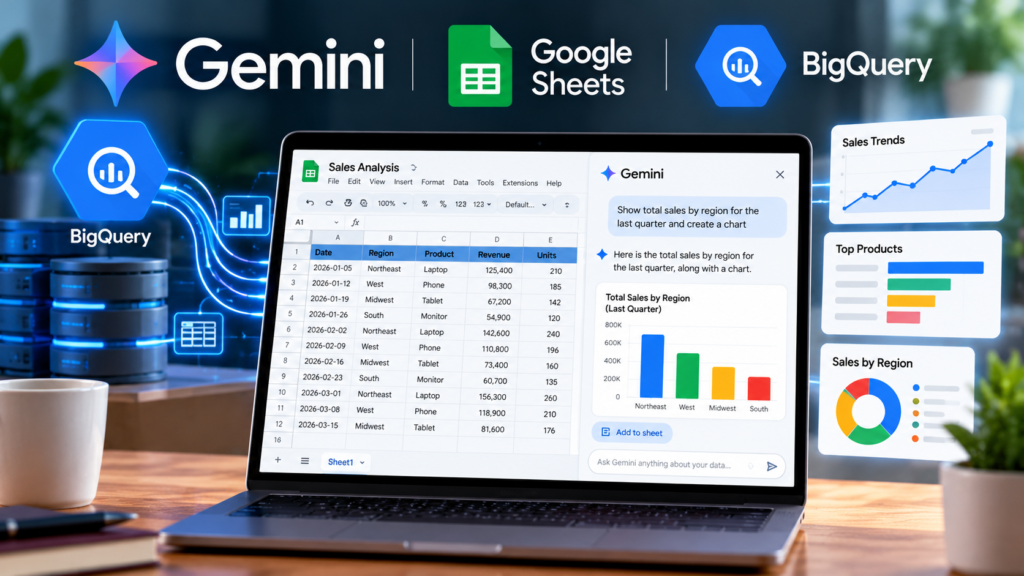
Google is bringing more powerful AI-assisted data analysis to Google Sheets. With a new Gemini feature, eligible users can ask questions about data stored in BigQuery using everyday language, explore trends through follow-up questions, and build connected charts and dashboards without manually writing every query.
Announced on October 19, 2026, the feature works through Connected Sheets, Google’s integration between Google Sheets and BigQuery. Unlike ordinary spreadsheet analysis, Gemini can query the full connected BigQuery dataset rather than relying only on the rows currently visible in a spreadsheet.
For businesses that work with large datasets, this could make data analysis more accessible to employees who understand their business questions but do not have extensive SQL experience.
Official announcement: Google Workspace Updates.
What Can Gemini Do With BigQuery Data in Google Sheets?
Google’s update introduces three important capabilities.
1. Ask Questions Using Natural Language
Instead of manually building queries, users can ask Gemini questions about their connected business data.
For example, a sales manager could ask:
- What were total sales in the Northeast last quarter?
- Which products generated the most revenue?
- How did sales compare with the same quarter last year?
- Which regions experienced the largest changes in performance?
Gemini processes the request against the connected BigQuery dataset and returns an answer based on the available data and permissions.
Users can then ask follow-up questions to investigate the results further. This creates a more conversational approach to data exploration.
2. Explore Trends With Follow-Up Questions
A single result rarely explains the entire story behind a business metric.
Suppose a company discovers that revenue increased last quarter. The next questions might be whether the increase came from a particular region, a specific product, or a change in monthly performance.
With Gemini, users can continue the conversation to investigate these possibilities without starting a completely new analysis for every question.
This can help business teams explore data more quickly, although important findings should still be checked against the underlying records and appropriate business definitions.
3. Turn Analysis Into Charts and Dashboards
One of the more practical additions is the ability to create spreadsheet-based reporting outputs from a natural-language request.
For example, a user could ask Gemini to create a quarterly sales review containing:
- Revenue by region
- Monthly sales trends
- The top 10 products
- A summary of the findings
Gemini can propose a plan for review and then create a new spreadsheet tab containing connected, refreshable objects such as database formulas, pivot tables, and charts.
Because these objects remain connected to the underlying data, users can configure scheduled refreshes to keep reports current.
This could reduce the time spent preparing recurring management reports. However, users should still review the generated analysis, calculations, and visualizations before sharing them as official business results.
How to Use Gemini With BigQuery in Google Sheets
The feature requires a spreadsheet connected to BigQuery through Connected Sheets. It is not simply a way to analyze any ordinary spreadsheet or upload an arbitrary dataset to Gemini.
Follow these steps to get started.
Step 1: Connect Google Sheets to BigQuery
Open Google Sheets and establish a connection to your BigQuery data using Connected Sheets. You will need the appropriate access permissions.
Step 2: Open the connected spreadsheet
Open the spreadsheet that contains the BigQuery connection and confirm that you can access the relevant data.
Step 3: Open the Gemini side panel
Select the Gemini option in the spreadsheet interface. Google says eligible users can begin using the feature from the Gemini side panel in a connected spreadsheet.
Step 4: Ask a question about your data
Start with a specific business question. For example:
“Compare total sales by region for the last two quarters and identify the regions with the largest increases.”
A clearly defined question is easier to evaluate than a vague request such as “Analyze everything.”
Step 5: Explore the answer
Ask follow-up questions to investigate the results. If you need a recurring report, describe the charts, pivot tables, or dashboard you want Gemini to create.
Step 6: Review and refresh the results
Check the output against the source data and verify that the chosen date ranges, metrics, and calculations match your requirements. Configure refresh settings where appropriate.
For Google’s general instructions, see the official guide: Get started with BigQuery data in Google Sheets.
Does This Mean You No Longer Need SQL?
Not entirely.
Natural-language analysis can reduce the need to write SQL manually for common reporting and exploratory questions. It does not eliminate the need for database knowledge in every situation.
SQL remains valuable when users need complex joins, custom transformations, specialized calculations, or precise control over how a query runs. Data professionals may also need to investigate unexpected results and validate the logic behind AI-generated answers.
The practical benefit is that Gemini can help more employees access and explore data while allowing analysts to focus on more complex work.
Who Can Access the New Feature?
According to Google’s October 19 announcement, the feature is available to eligible users on these plans:
- Google Workspace Business: Business Standard and Business Plus
- Google Workspace Enterprise: Enterprise Standard and Enterprise Plus
- Consumer plans: Google AI Pro and Google AI Ultra
- Education: Google AI Pro for Education
- Other access: AI Expanded Access
Users must also have permission to query the connected BigQuery data.
Google began a gradual rollout on October 19, 2026, with visibility potentially taking up to 15 days for Rapid Release and Scheduled Release domains. Therefore, some eligible users may not see the feature immediately.
Check the official feature announcement for the latest availability information.
What About Data Access and Security?
Because Gemini works with connected business data, permissions matter.
Users should verify that they have appropriate access to the BigQuery datasets they query and follow their organization’s policies for handling confidential information.
Organizations should also ensure that reports shared with colleagues do not expose sensitive business information to people who should not have access to it.
AI-generated findings should not automatically be treated as verified facts. Before making financial or operational decisions, check the underlying data and confirm that the analysis answers the intended question.
Gemini in Sheets vs. Traditional Spreadsheet Analysis
The key difference is the workflow.
Traditional spreadsheet analysis often requires users to prepare data, write formulas, create pivot tables, and build charts themselves. Connected Sheets already makes it possible to work with large BigQuery datasets through the familiar spreadsheet interface.
Gemini adds a conversational layer that can help users ask questions, investigate results, and generate reporting objects with natural-language instructions.
For people who regularly prepare business reports, this could shorten the distance between asking a question and producing a useful analysis.
If you also use Google’s AI tools for document creation, see our guide to creating documents with your voice in Google Docs.
Final Thoughts
Gemini’s new BigQuery capabilities make Google Sheets a more accessible interface for exploring large business datasets. Users can ask questions in natural language, investigate results through follow-up prompts, and create connected charts and dashboards without manually constructing every part of the workflow.
The biggest benefit is not that SQL or data analysts become unnecessary. It is that more people can explore business data independently, while analysts can spend more time validating results and solving complex problems.
For teams already using BigQuery and Google Sheets, this is a feature worth testing once it becomes available on their accounts.