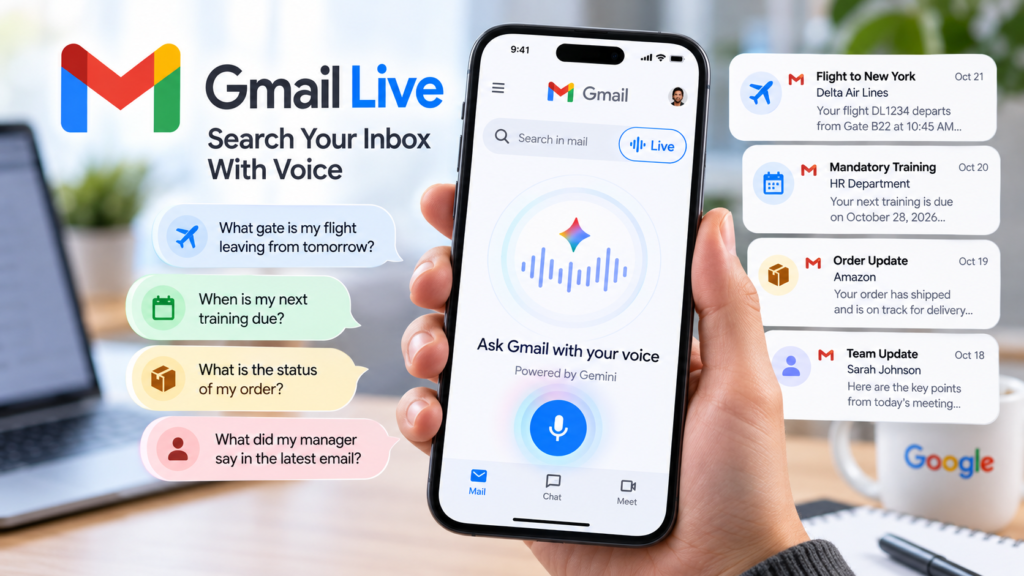
Google is rolling out Gmail Live, a Gemini-powered feature that lets users search their inbox by speaking naturally instead of typing keywords or opening long email threads. The feature is designed to help people find important details from their emails while commuting, multitasking, or using their phones on the go.
Announced for Google Workspace customers on October 15, 2026, Gmail Live can answer questions using information found in your inbox and provide references to the emails behind its responses. However, availability is currently limited to eligible users in the United States who use English (US).
What Is Gmail Live?
Gmail Live is a conversational voice-search feature built into the Gmail mobile app. Rather than entering a search term and manually reviewing multiple messages, users can ask a question aloud and receive a spoken response based on relevant emails.
For example, you could ask:
- “What gate is my flight leaving from tomorrow?”
- “When is my next mandatory training due?”
- “What is the latest update from my manager?”
- “What is the current status of my order?”
Google says Gmail Live uses Gemini models to find relevant information and synthesize an answer. It also displays email source cards so users can check which messages support the response.
This makes Gmail Live different from ordinary voice dictation. Instead of simply converting speech into text, it helps users retrieve and summarize information already contained in their inbox.
How to Use Gmail Live
If your account and device are eligible, follow these steps to start a voice session.
1. Open the Gmail mobile app
Open Gmail on a supported Android or iOS device and sign in to the eligible account you want to search.
2. Find the Live option
Look for the Live entry point in the Gmail search bar. Tap it to begin a conversational voice session.
If the option is missing, the feature may not have reached your account, or your account, location, language, or subscription may not meet the current requirements.
3. Allow microphone access
When prompted for the first time, grant Gmail permission to use your microphone. This allows you to ask questions using your voice.
4. Ask a specific question
Speak naturally and describe the information you need. For example, if you want to find a travel detail, ask, “What gate is my flight leaving from tomorrow?”
Specific questions are generally more useful than vague requests because they give the system a clearer task.
5. Review the answer and its sources
Listen to the response and review the email source card shown in the conversation. Open the referenced email when you need to verify a date, amount, booking detail, or other important information.
AI-generated answers can be incomplete or incorrect, so check the original message before acting on consequential information.
Who Can Access Gmail Live?
Google’s October 15 announcement lists Gmail Live for eligible Google Workspace editions, selected Gemini add-ons, and consumer Google AI Plus, Pro, and Ultra subscriptions.
The current rollout has an important restriction: Gmail Live is available only to users in the United States with English (US) set as their language. Google is rolling out the feature gradually, so not every eligible account will necessarily see it immediately.
For business and school accounts, availability can also depend on the organization’s Google Workspace edition and administrator settings.
If you are in Indonesia and cannot find Gmail Live in your Gmail app, that is consistent with the current regional restriction. Changing your language setting alone does not guarantee access.
For the latest eligibility details, consult Google’s official Gmail Live rollout announcement.
Gmail Live vs. Traditional Gmail Search
Traditional Gmail search relies on typed keywords, search operators, filters, and manual review of results. Gmail Live adds a conversational option for users who prefer to ask a question and hear a synthesized answer.
The two approaches serve different needs:
- Traditional search: Useful when you know a sender, subject, keyword, or exact phrase.
- Gmail Live: Useful when you want to ask a natural-language question about information spread across your emails.
- Email source cards: Useful for checking the original messages behind an AI-generated answer.
Gmail Live does not eliminate the need to verify information. For critical details, opening the original email remains the safer approach.
What About Privacy and Email Accuracy?
Because Gmail Live searches information in your inbox, users should treat its responses as a convenience rather than an unquestionable source of truth.
Check the original message before relying on information about travel, deadlines, payments, medical appointments, or work commitments. For business accounts, administrators should review the organization’s Google Workspace and Gemini settings to understand which AI features are enabled.
You can read Google’s official announcement about voice features in Gmail, Docs, and Keep for more information about how these conversational tools work.
Gmail Live Is Part of Google’s Broader AI Push
Gmail Live is one of Google’s efforts to bring conversational AI directly into everyday productivity apps. Instead of requiring users to switch to a separate chatbot, the feature brings voice-based information retrieval into the email workflow.
Google is also introducing voice-driven document creation through Docs Live. If you’re interested in that feature, read our guide to Google Docs Live and voice document creation.
The two tools address different tasks: Gmail Live helps users find information in existing emails, while Docs Live helps them turn ideas and relevant context into structured documents.
Final Thoughts
Gmail Live offers a more conversational way to find information buried in email threads. Asking a question aloud may be more convenient than manually searching through messages, especially on a phone.
For now, access remains restricted by location, language, and account eligibility. If the feature is not available in your Gmail app, check Google’s official rollout information rather than assuming your app is outdated.
As with other AI-powered tools, verify important answers against the original email before making decisions.